

Unbeknownst to a lot of Samsung fans, most Galaxy phones have a secret diagnostic mode built in which can be accessed simply by inputting a little-known code. Best of all, this feature is extremely easy to access and is a handy way of testing out a new or used phone to ensure it's in perfect running order before you commit to buying it.
Accessing the Secret Diagnostic Menu
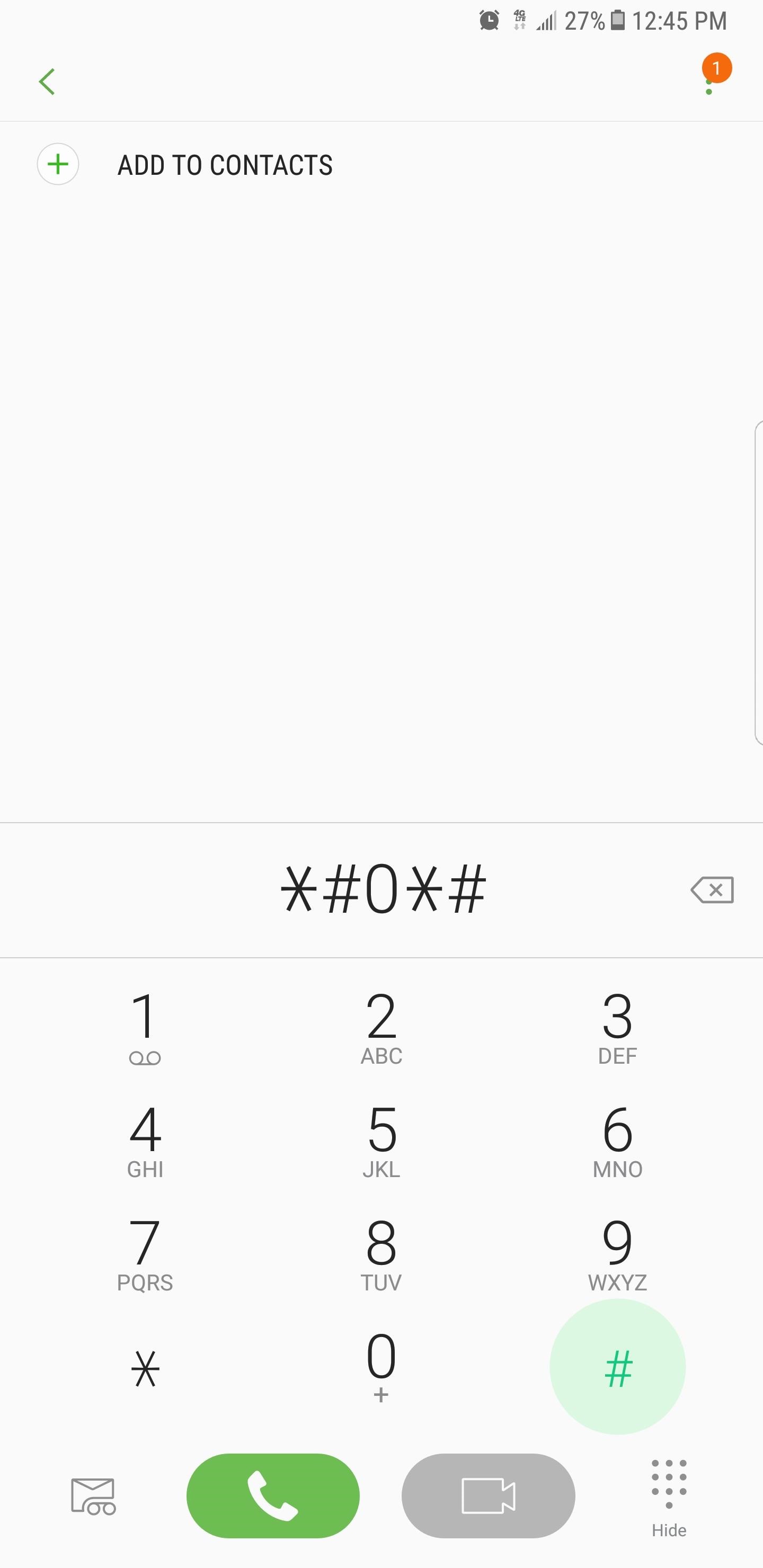
Before we begin, it's important to note that this feature may not be available on your device. Certain carriers, most notably Verizon and Sprint, have been known to block the code-based diagnostic mode on their Samsung smartphones and tablets, though newer phones from Sprint like the Galaxy S6 seem to have this functionality restored.To get the ball rolling, simply open your Samsung's phone app. From there, enter *#0*# using the dial pad, and the phone will immediately go into its secret diagnostic mode. Note that the process is automatic, so there's no need to tap on the green call button to enter the command. So if you enter the code and nothing happens, the feature is disabled on your device.
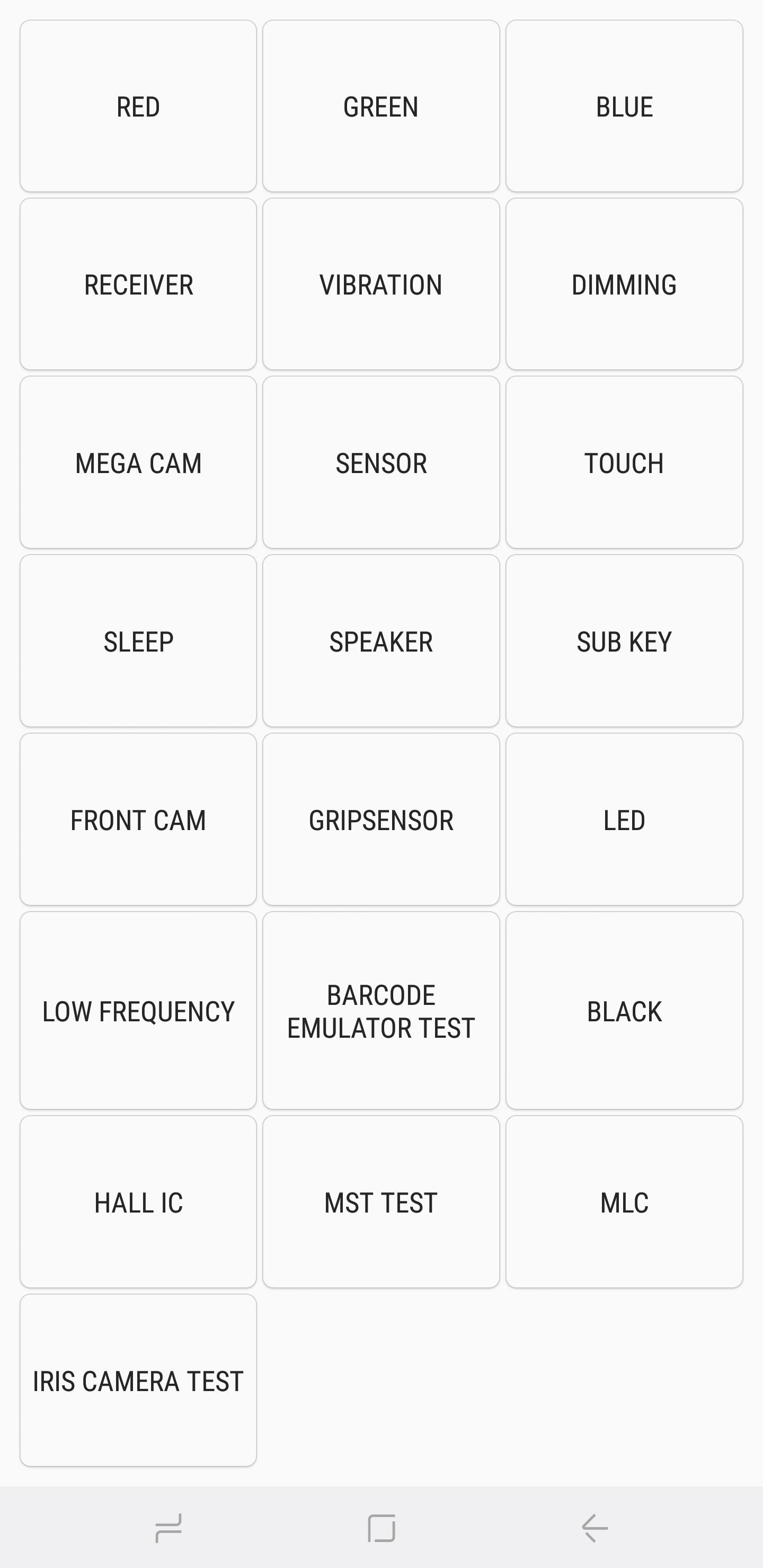
Red, Green & Blue Screens
Selecting any of these three tests checks for your handset's red, green, and blue color spectrums, and will brightly show the corresponding colors when selected. To go back to the main diagnostic page, simply tap on the screen to exit.


Receiver & Vibration
To check if your phone's receiver is working properly, tap on the "Receiver" button to commence testing. Doing so should take you to a white screen, accompanied by a clearly audible dial tone. Once you're satisfied, simply tap on the back button twice to go back to the main test page."Vibration" tests out your phone's vibration motor. Your screen will go black once you tap on the "Vibration" button, accompanied by a constant vibration. Tap on the screen once to exit this test and go back to the main test screen.
Dimming
Tapping on "Dimming" will bring you to a red, green, and blue screen. The screen will then alternate between dimming and brightening whenever you tap the screen. To exit back to the main test page, press the volume up button.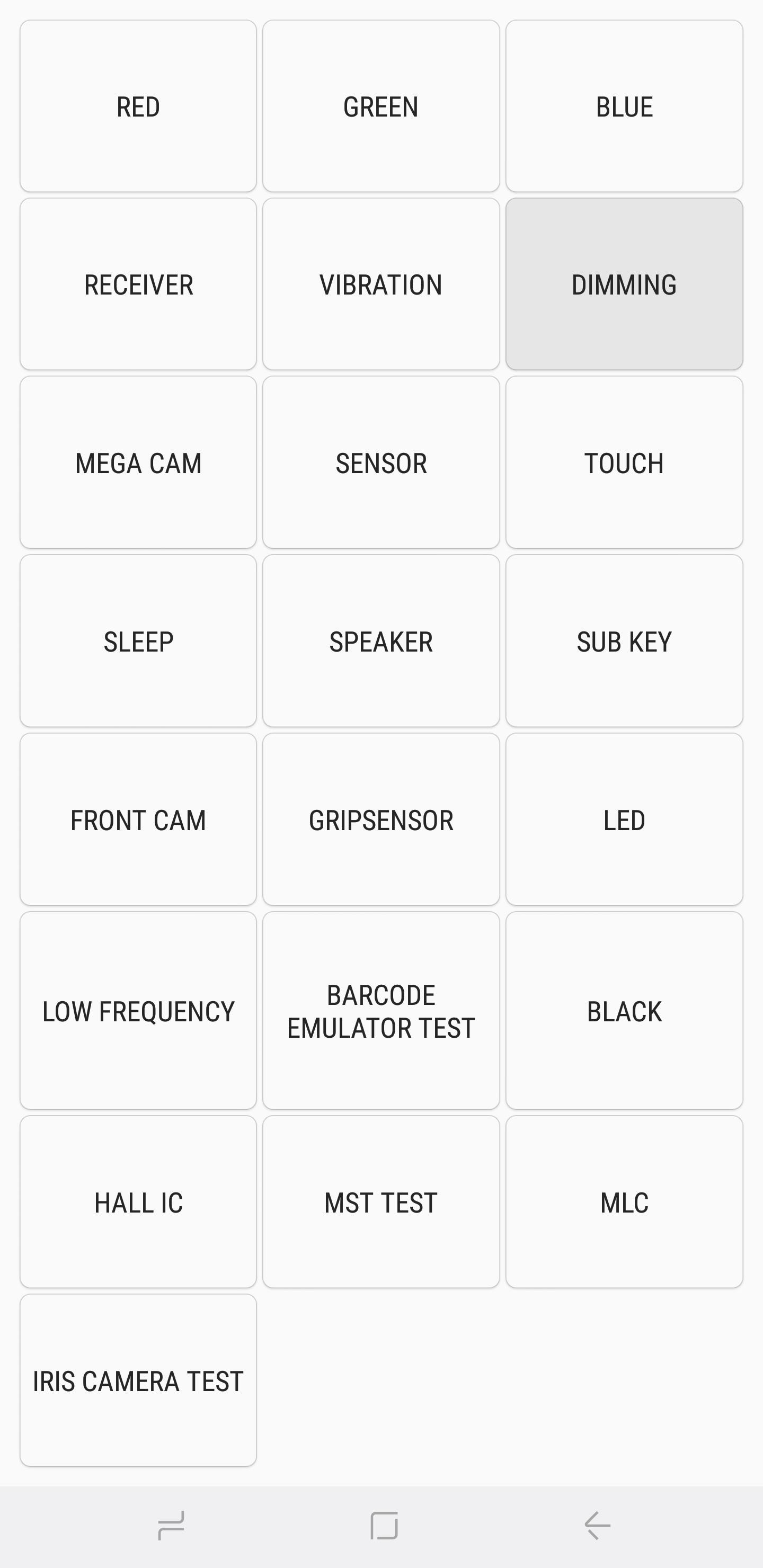

Mega Cam
Tap on "Mega Cam" to test out your main camera. Use the volume buttons to zoom in and out, then tap on the camera button on the bottom of the screen to snap a photo. Please note that flash is on by default, and your test photo will also be saved in your gallery. Once you're done testing the camera, tap on the back button to exit out to the main diagnostic screen.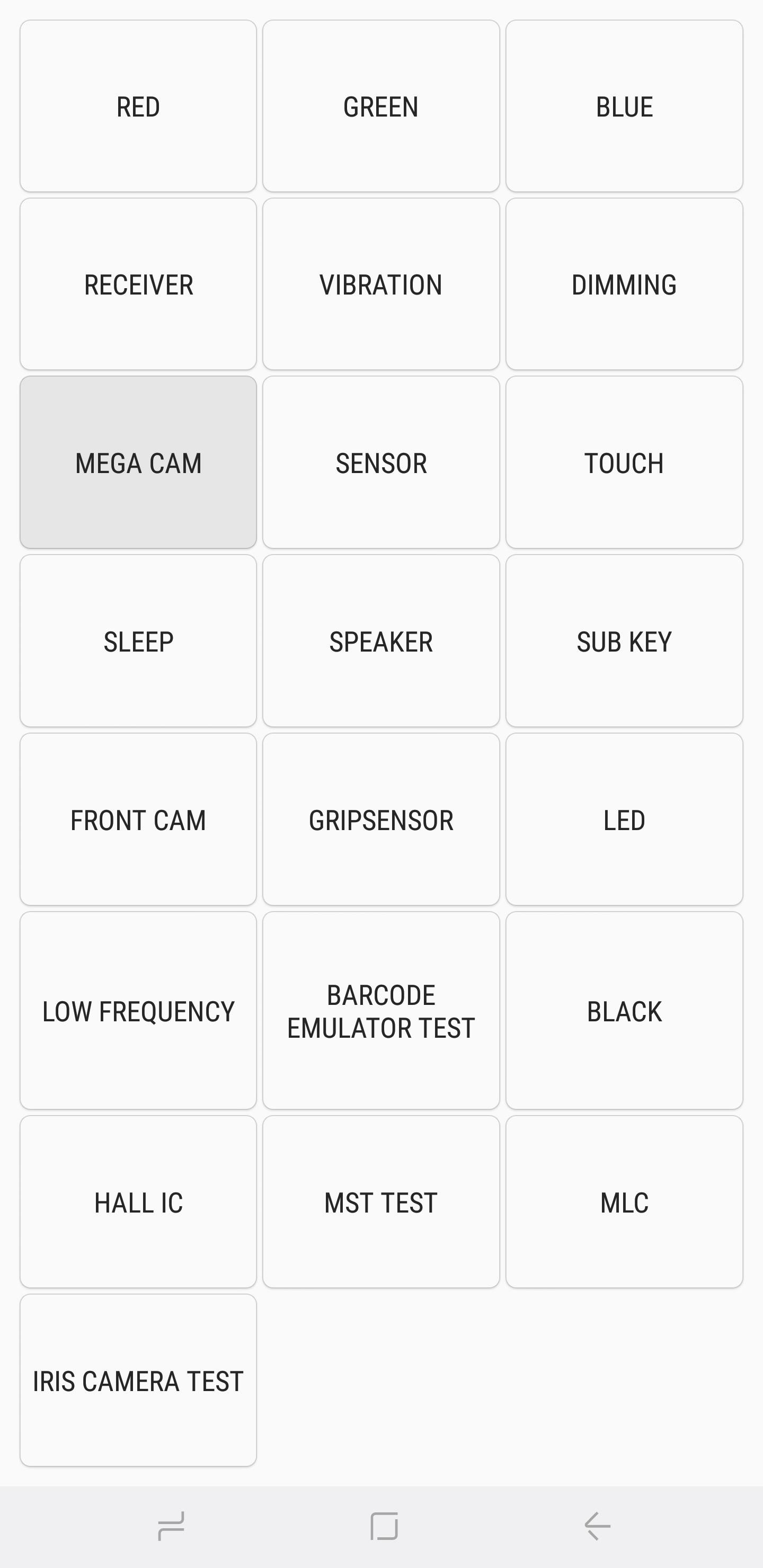

Sensor
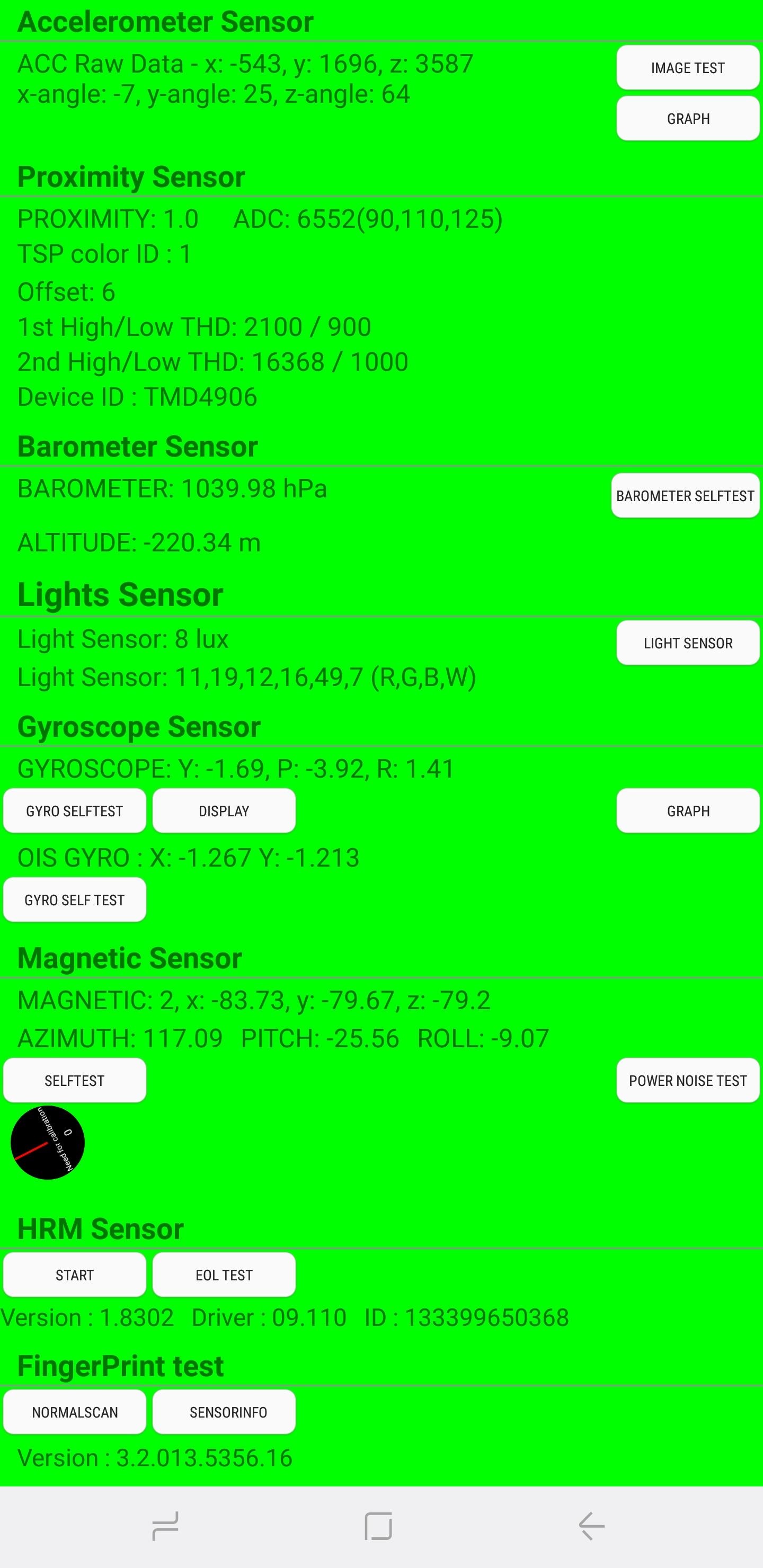
Tapping on the "Sensor" button will yield a test page for a host of sensors — namely the accelerometer, proximity sensor, barometer, light sensor, gyroscope, magnetic sensor, HRM, and fingerprint scanner. I'll go over all eight of these submenus in separate sections below.1Accelerometer
Accelerometers are vital sensors that are used to detect the orientation of the phone, primarily measuring linear acceleration of movement. To check for its functionality, tap on either "Image Test" to check for landscape-to-portrait transitions or "Graph" to measure how well the sensor detects movement by shaking your device up and down.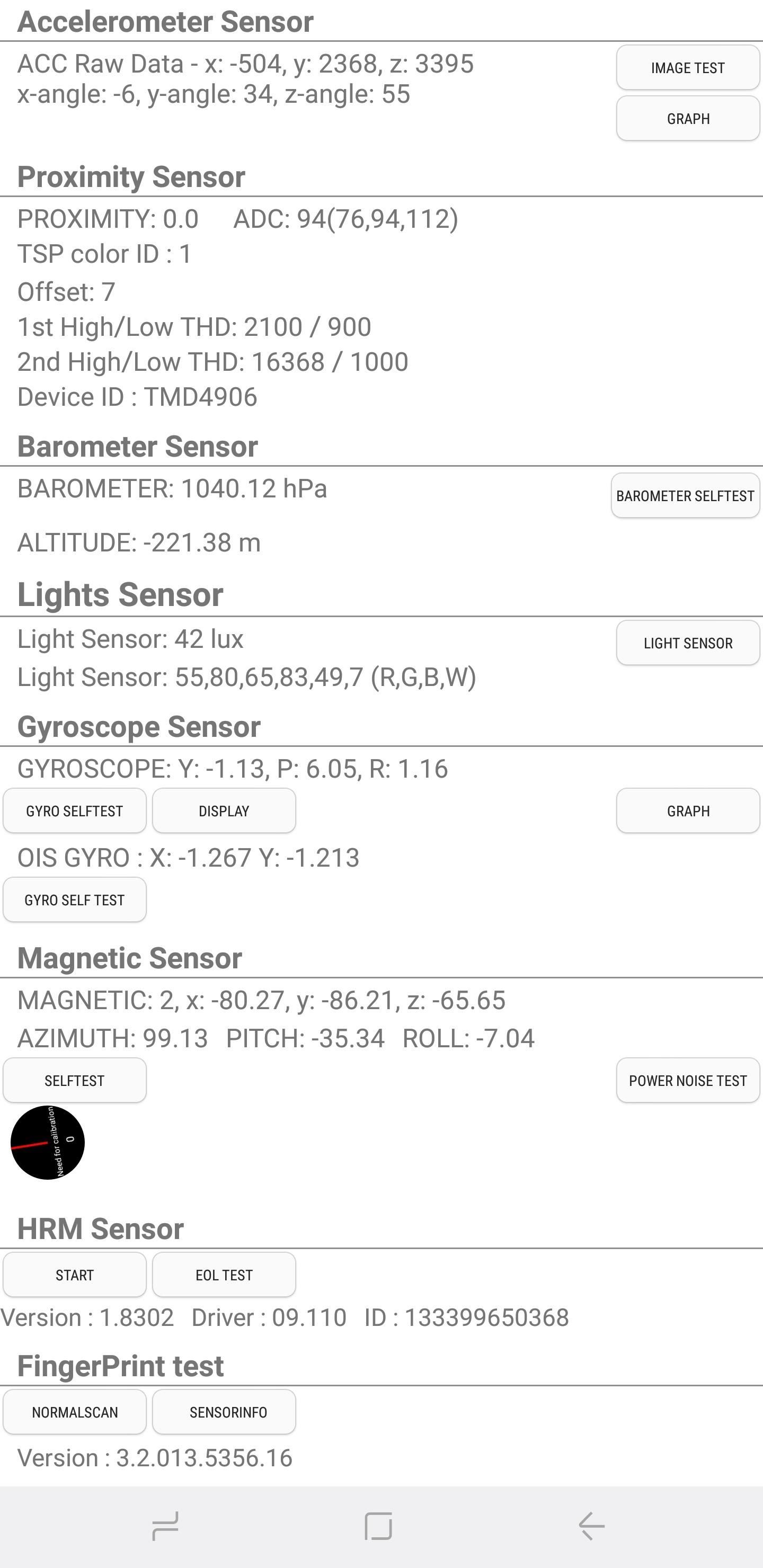


2Proximity Sensor
This tests your device's proximity sensor, which is responsible for turning your screen off whenever your phone is against your face in a phone call to prevent accidental touches. To test for this feature, simply cover the top of your phone with your hand. The screen should now turn green if the proximity sensor works, so uncover the screen to turn the screen white and proceed to the next test.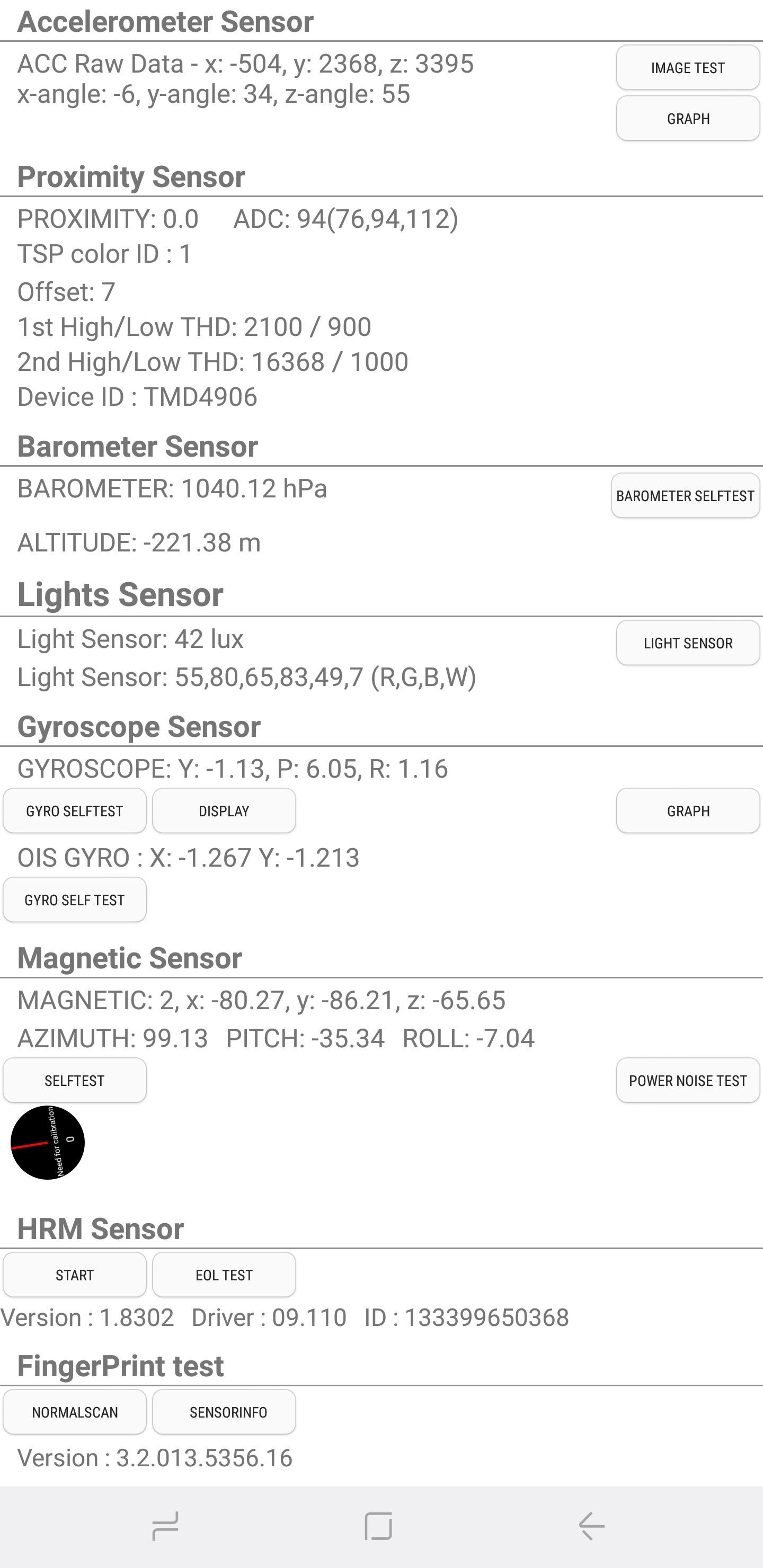
3Barometer
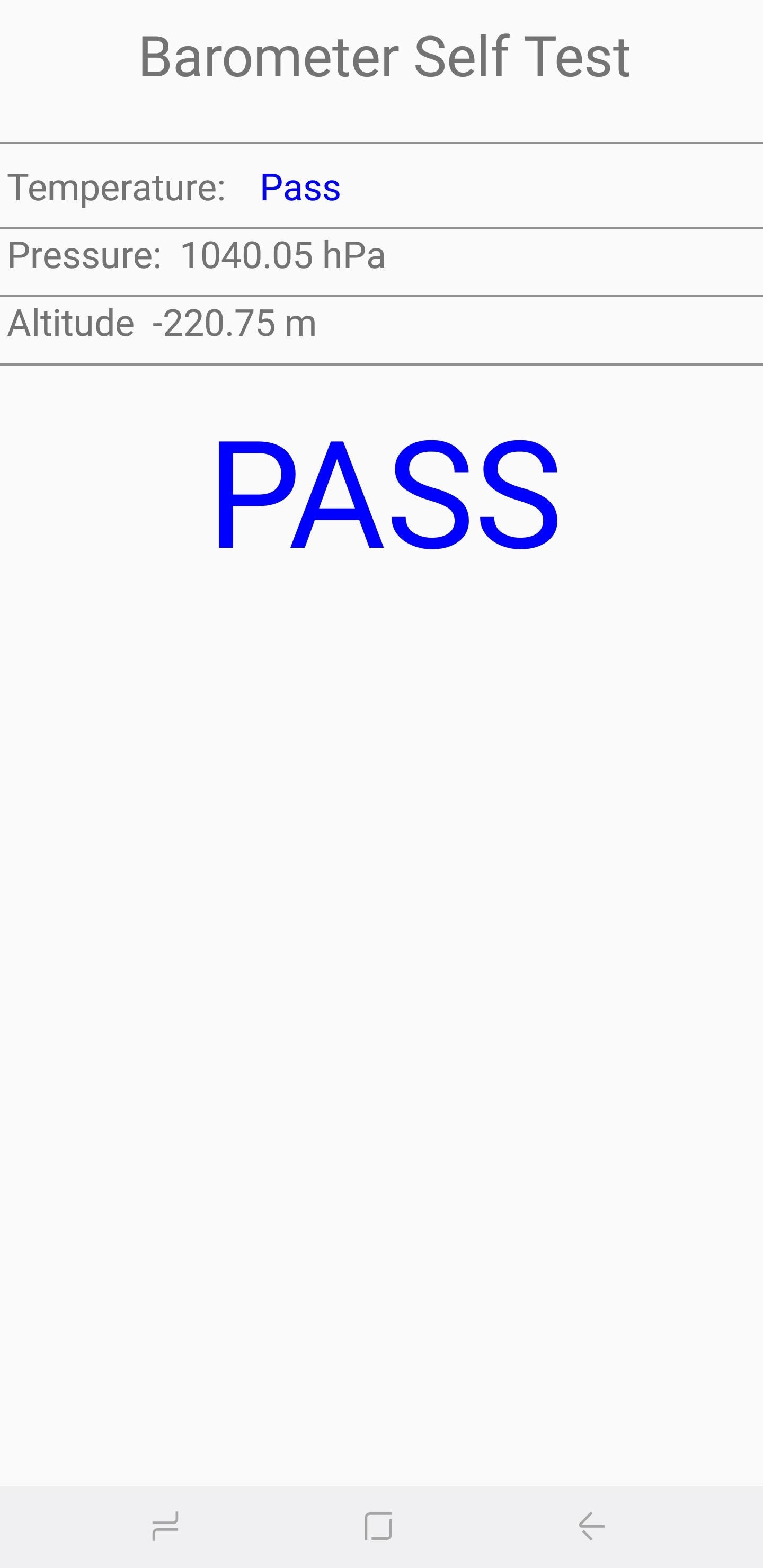
This sensor is primarily responsible for tracking altitude, and it aids in giving more accurate GPS readings. The test for this function is straightforward — simply tap on "Barometer Selftest" to initiate an automated test that'll instantly let you know if it works or not.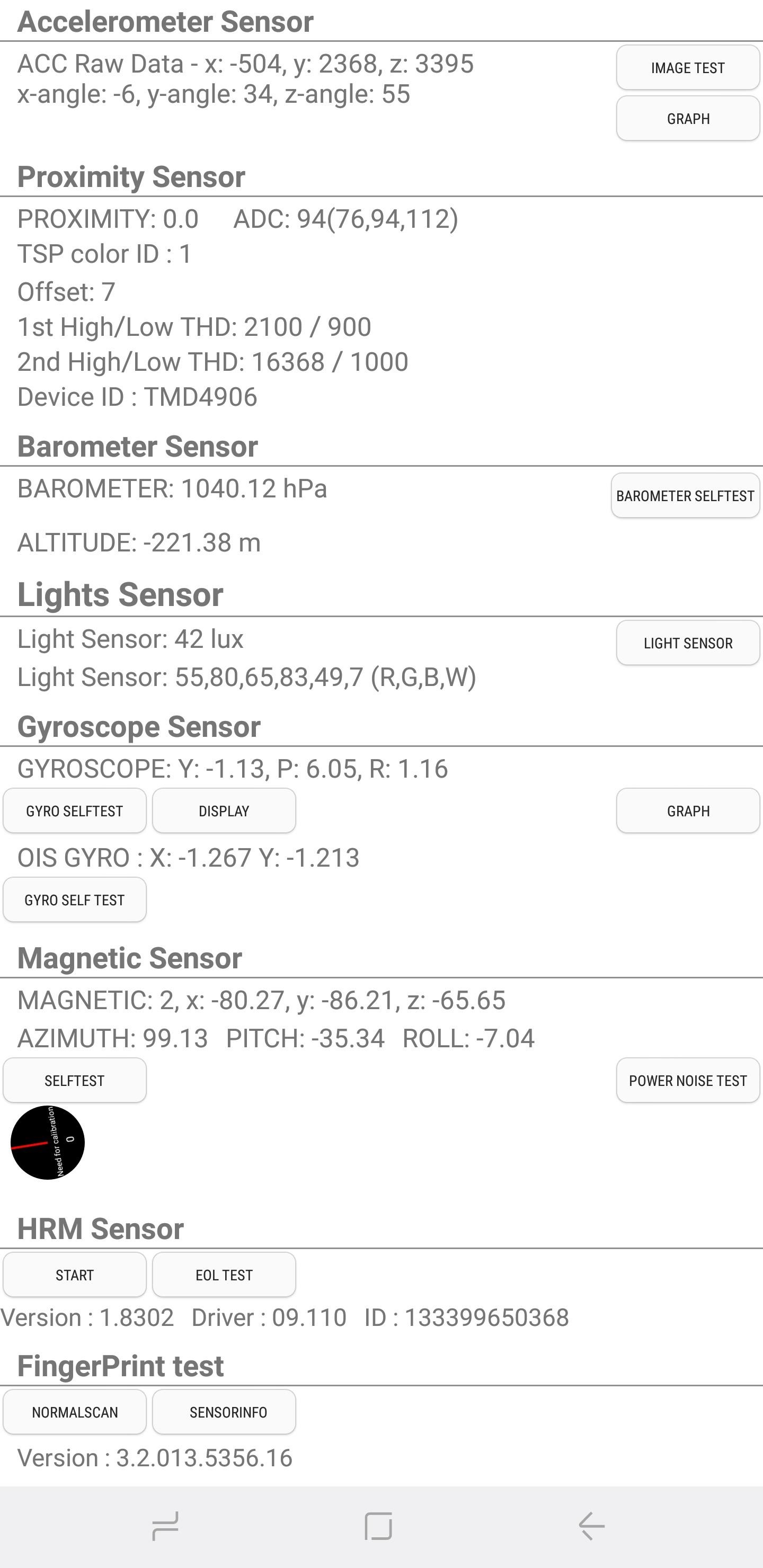
4Light Sensor
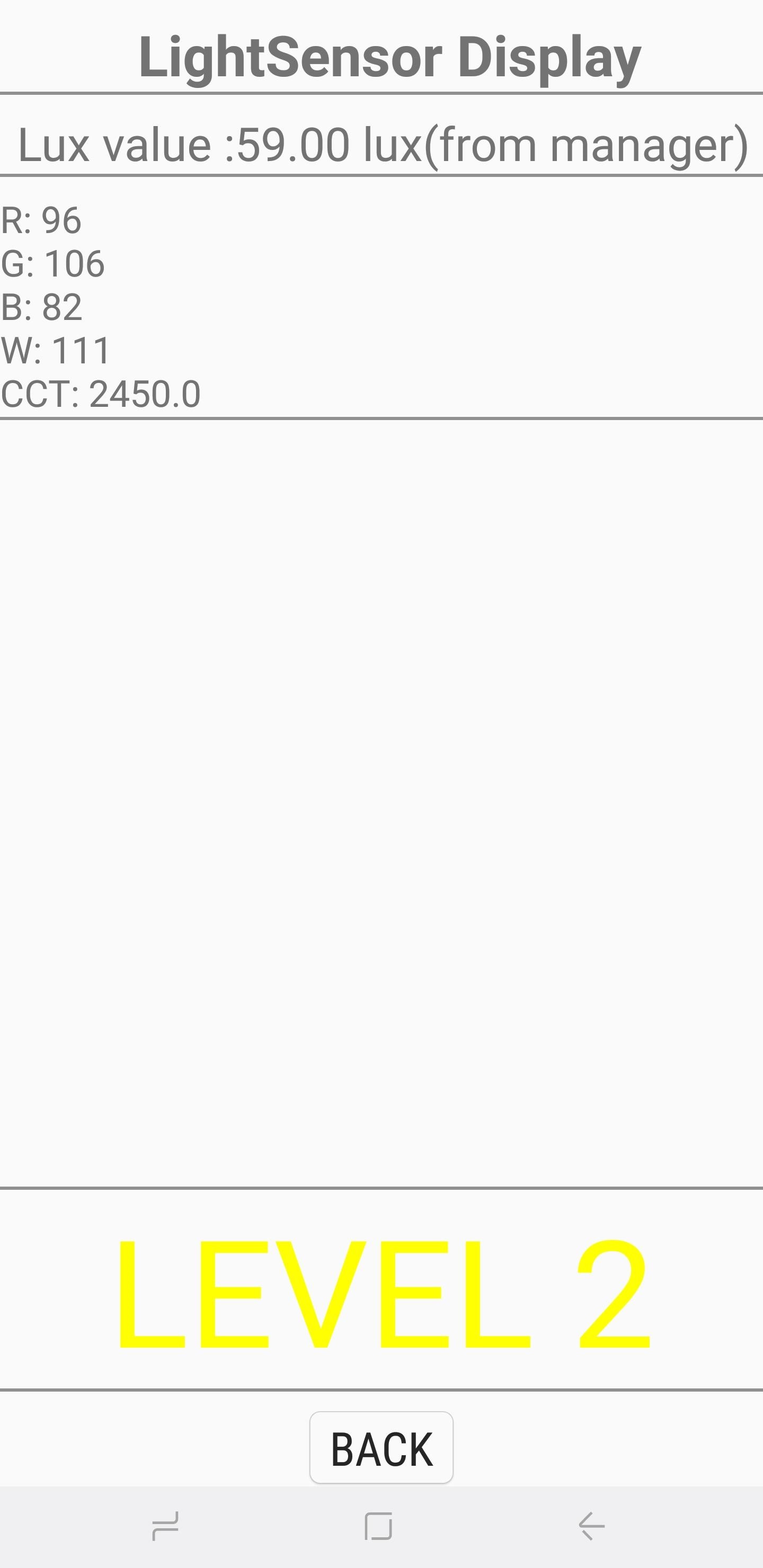
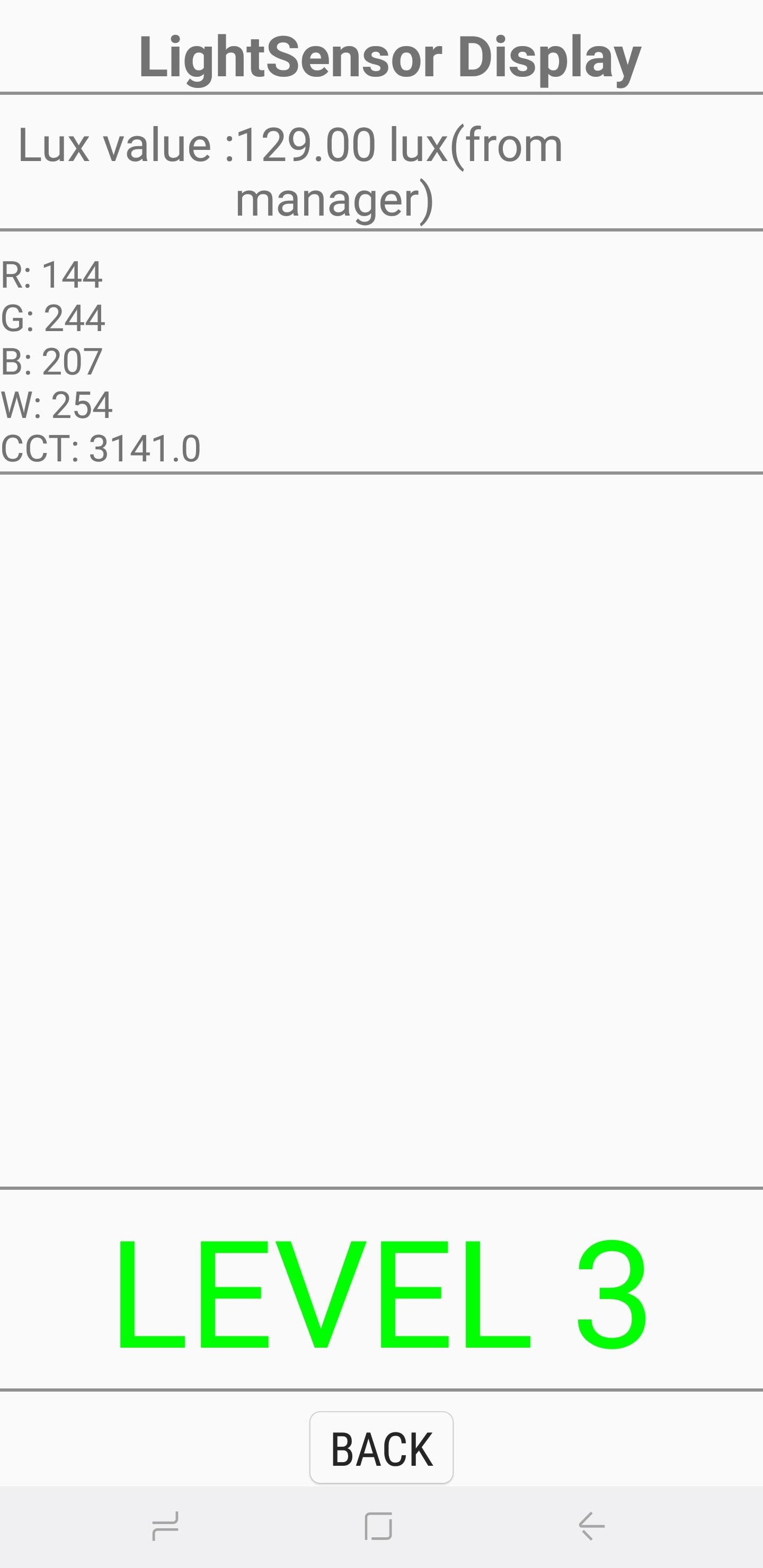
As its name suggests, this sensor is in charge of detecting ambient light. Tap on "Light Sensor" to initiate the test, then expose your phone to light of varying brightness. Three levels should register in turn, starting from "Level 1" for dim lighting all the way up to "Level 3" for extremely bright.
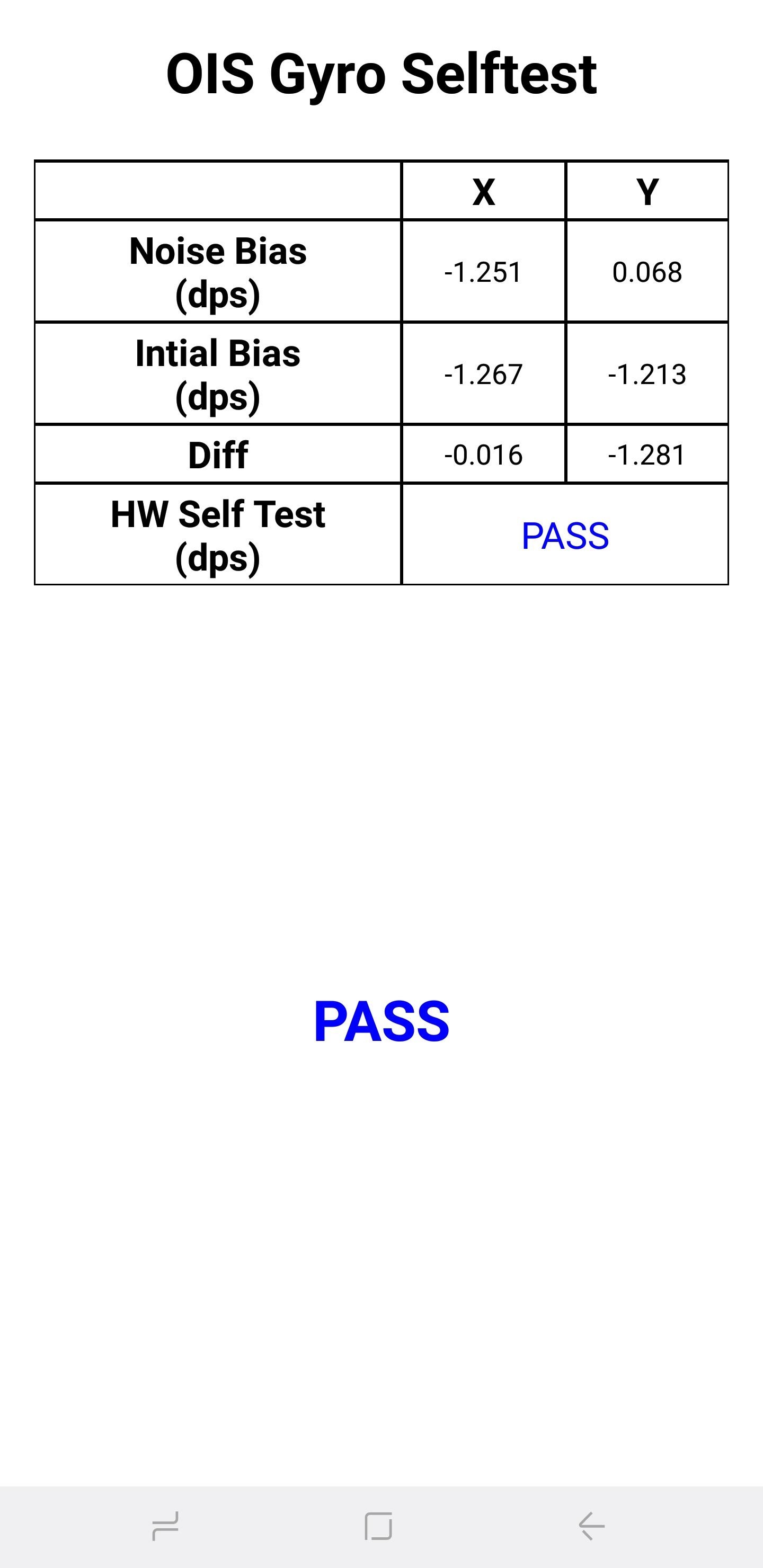
5Gyroscope
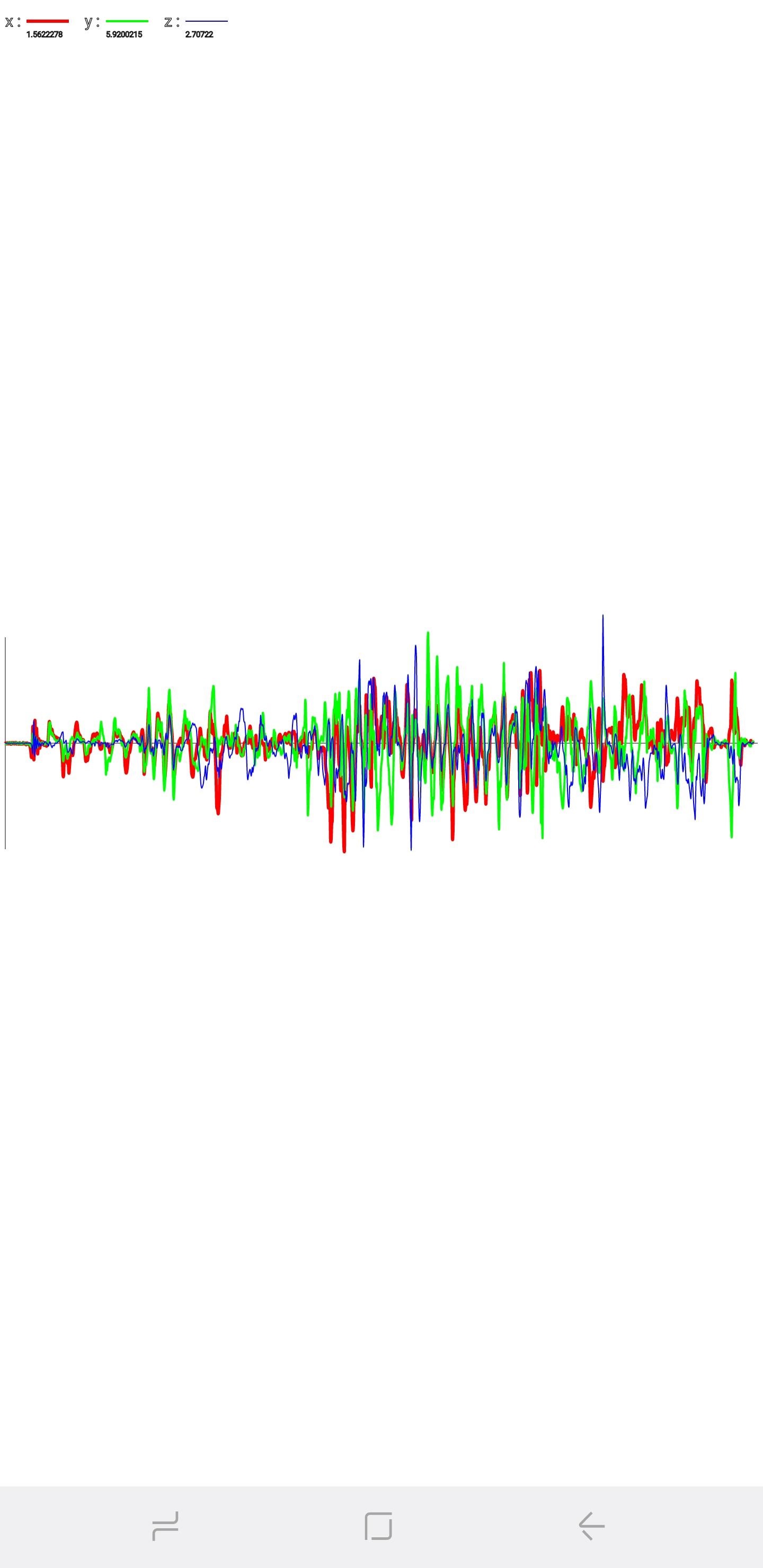
The gyroscope measures your device's rotation and works alongside the accelerometer to paint a complete picture of general movement. There are several ways to test your handset's gyroscope — you can manually perform a test by tapping on either "Display" or "Graph," or you can rotate your phone around and read the corresponding results in either numbers or through a linear graph.

6Magnetic Sensor
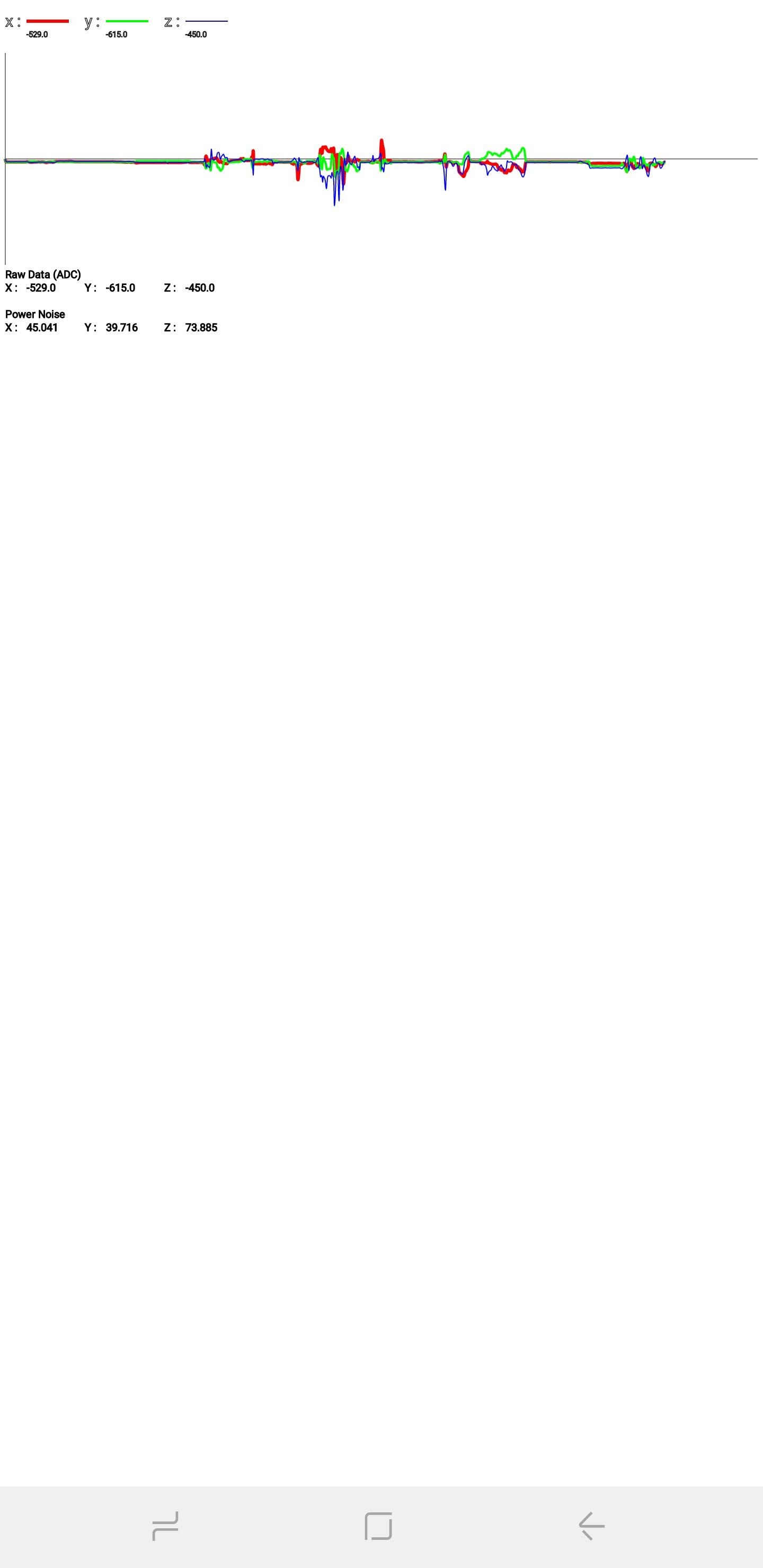
This tests for the functionality of your device's magnetic sensor. Tapping on "Selftest" will initiate an automatic test to see if your device passes or fails. If you want to test manually, tap on "Power Noise Test," then run a magnet around your phone. On the S8, for example, the magnetic sensor is located along the top-left corner of the phone, as evidenced by the magnetic spikes on the graph when a magnet is close to that area.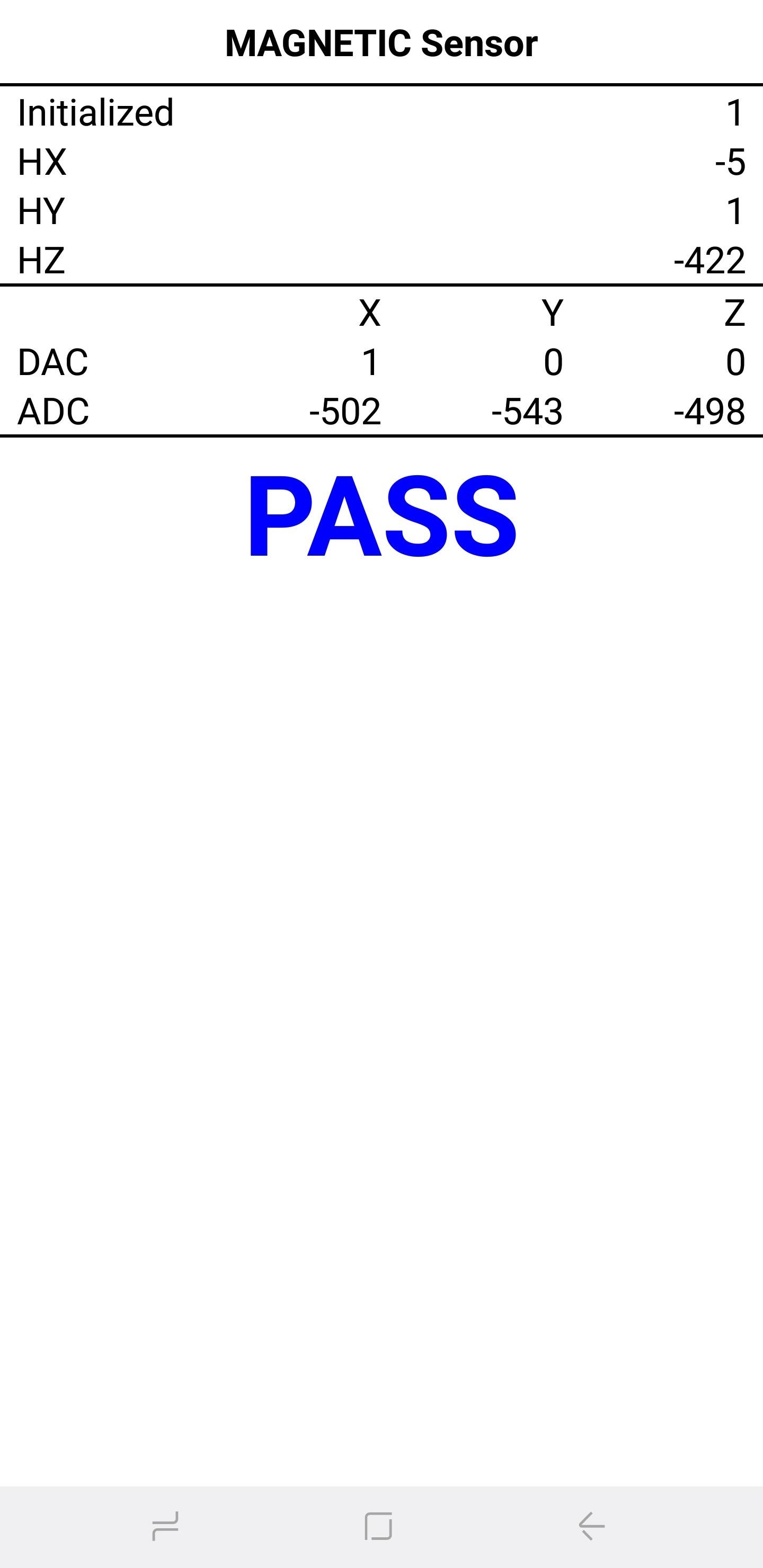
7HRM
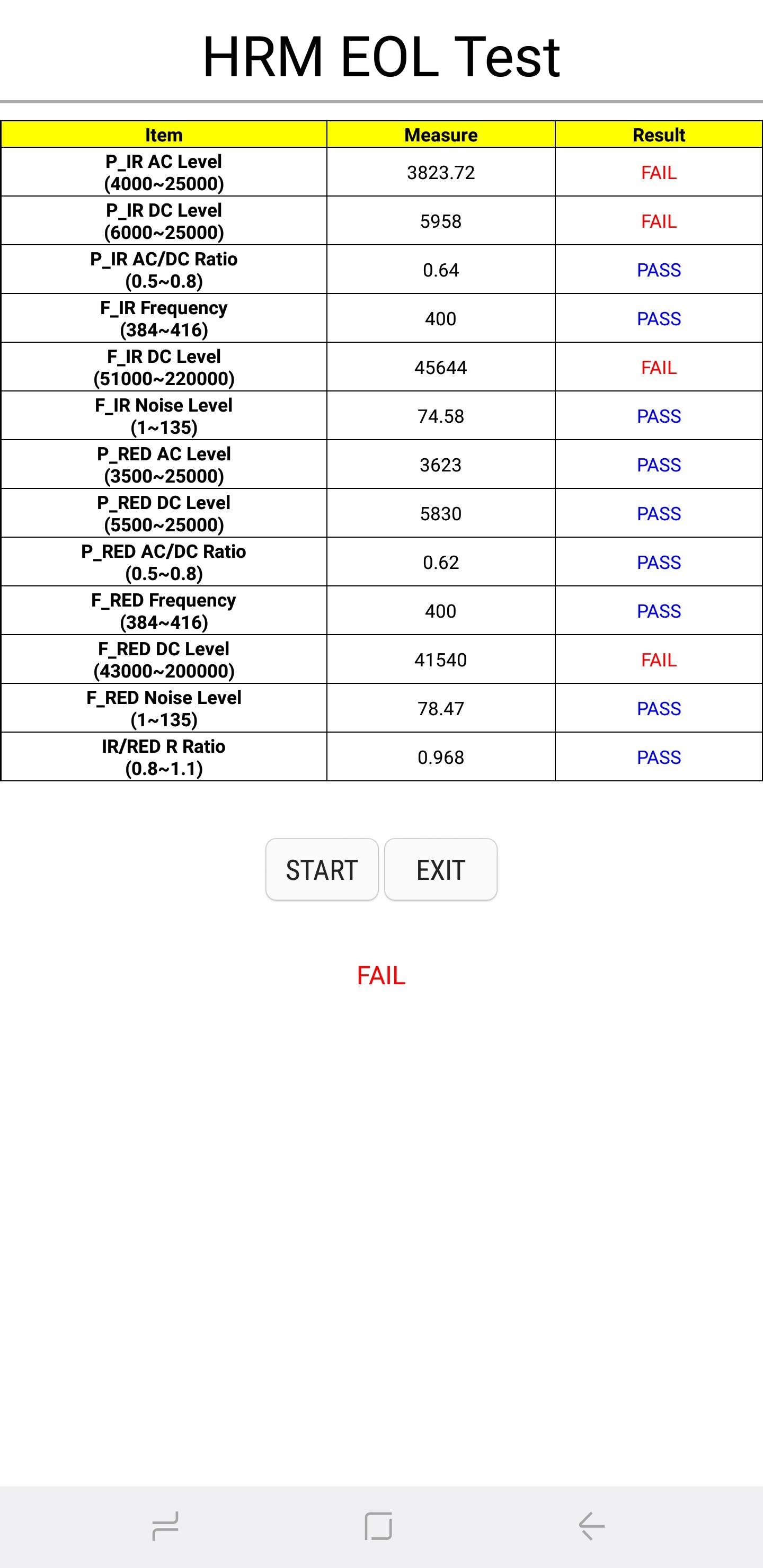
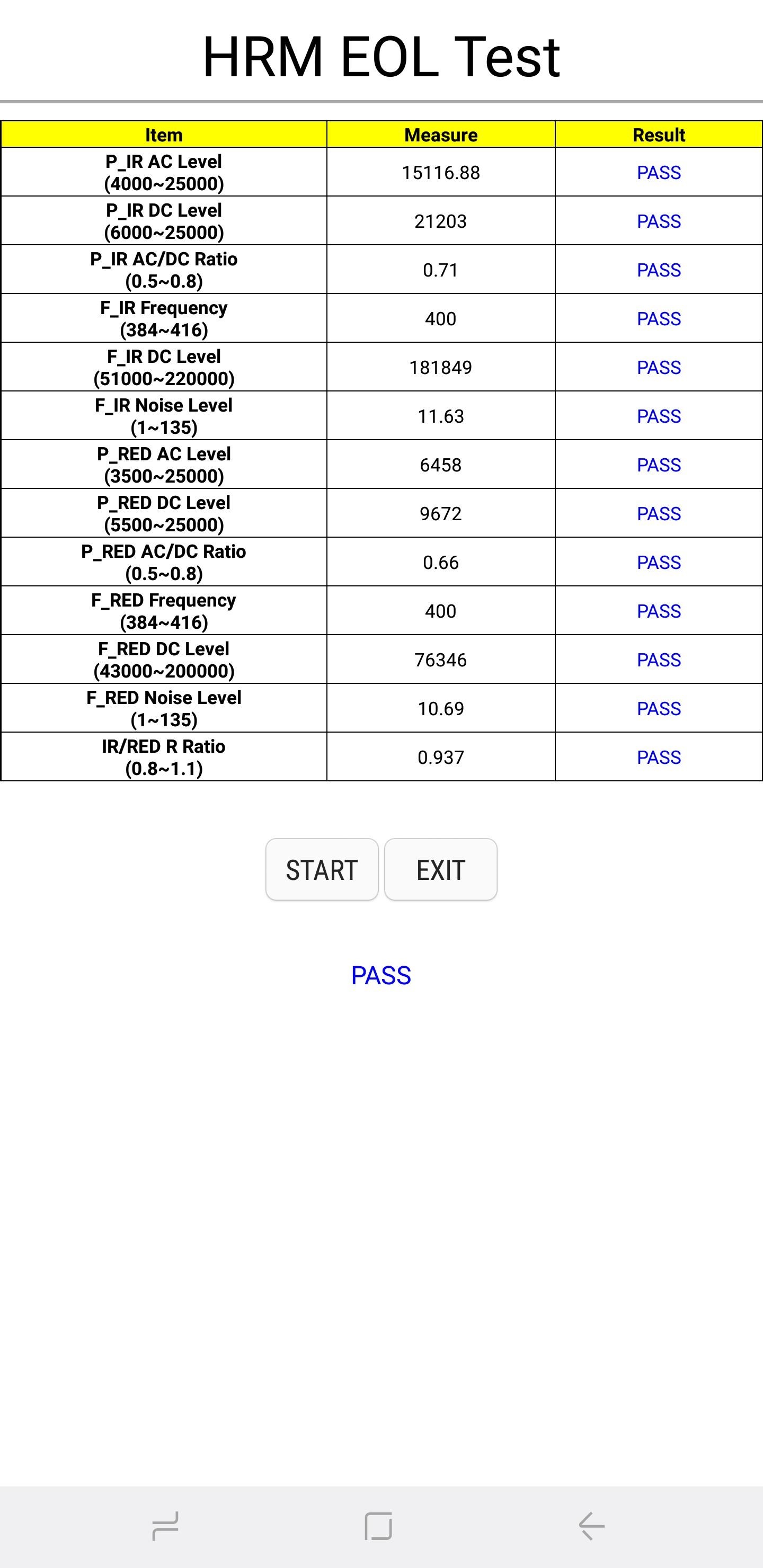
This tests out your smartphone's heart rate monitor and can be performed in two ways. Tapping on the "Start" button within the "HRM" tab will take you to the "HRM Test" page, and from there you can test your handset's heart rate monitor by placing your finger on the sensor. If you want to run the "HRM EOL" test, you'll need to place your phone on a flat service and keep it completely still, otherwise, it will register multiple failures.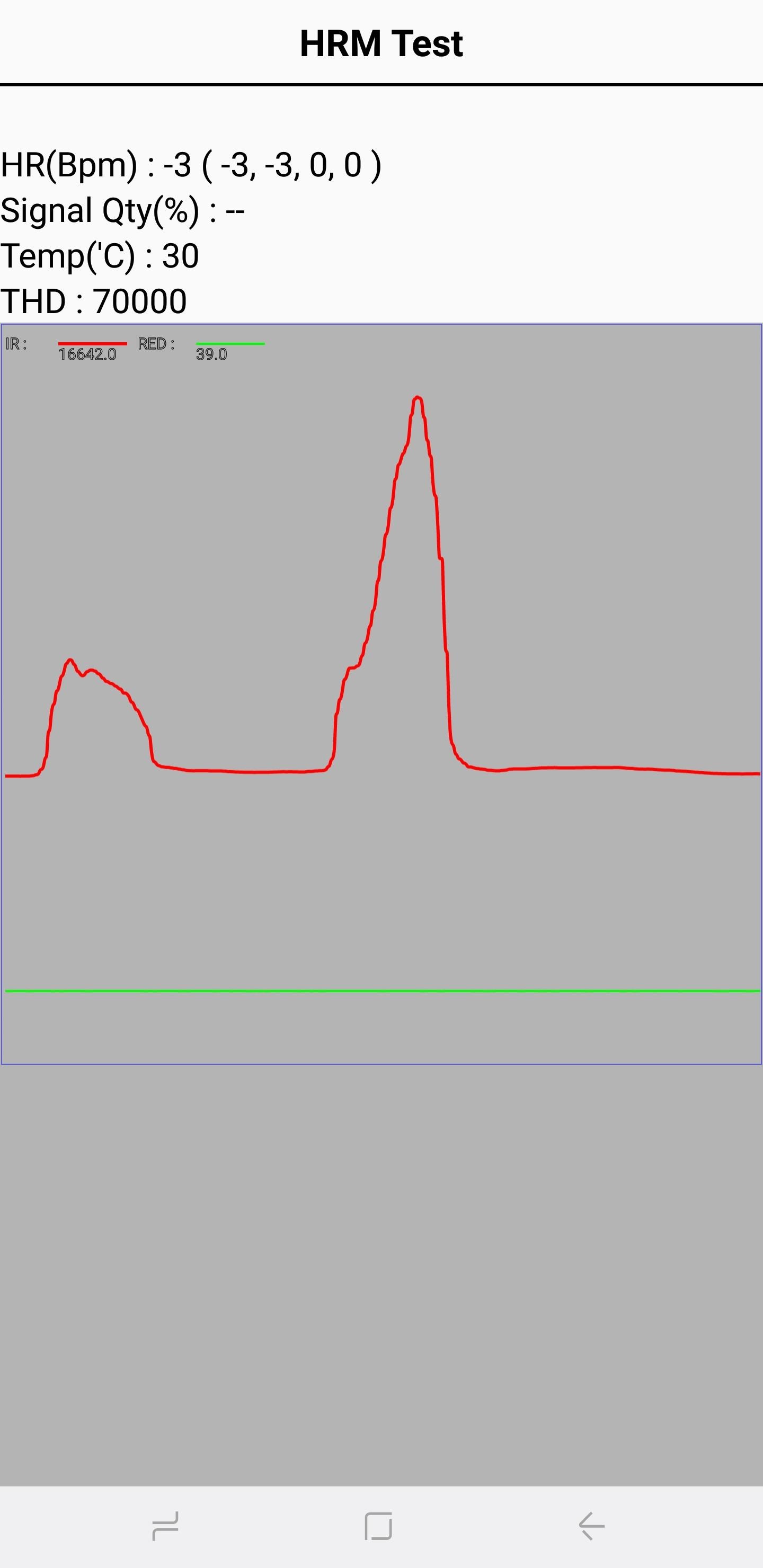
8Fingerprint Sensor
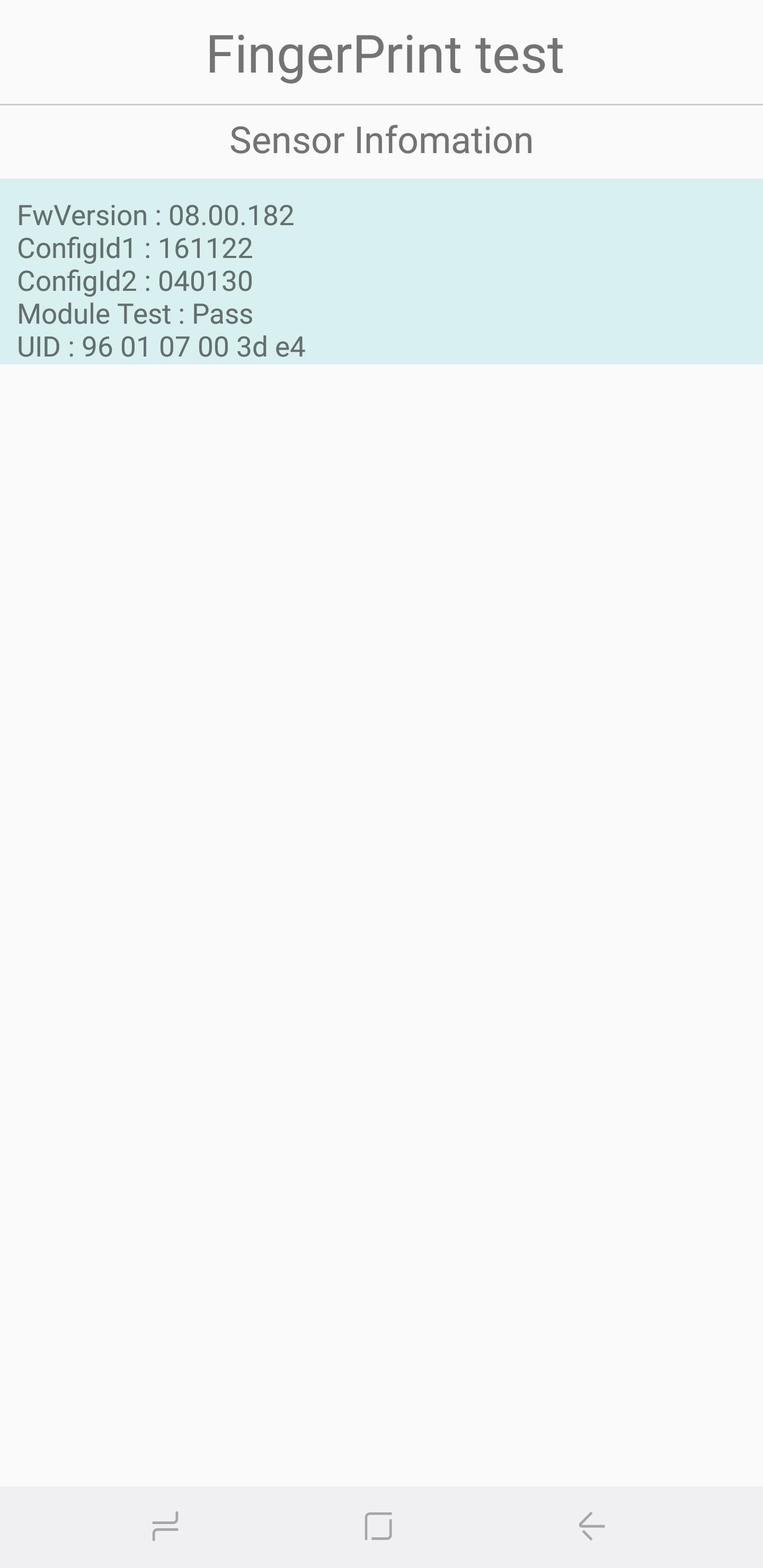
This tests out your fingerprint scanner. Tap on "Normal Scan" to commence testing, which will take place automatically to check if all components are functioning properly. Tapping on "Sensor Information" will reveal details like firmware version that you can look through.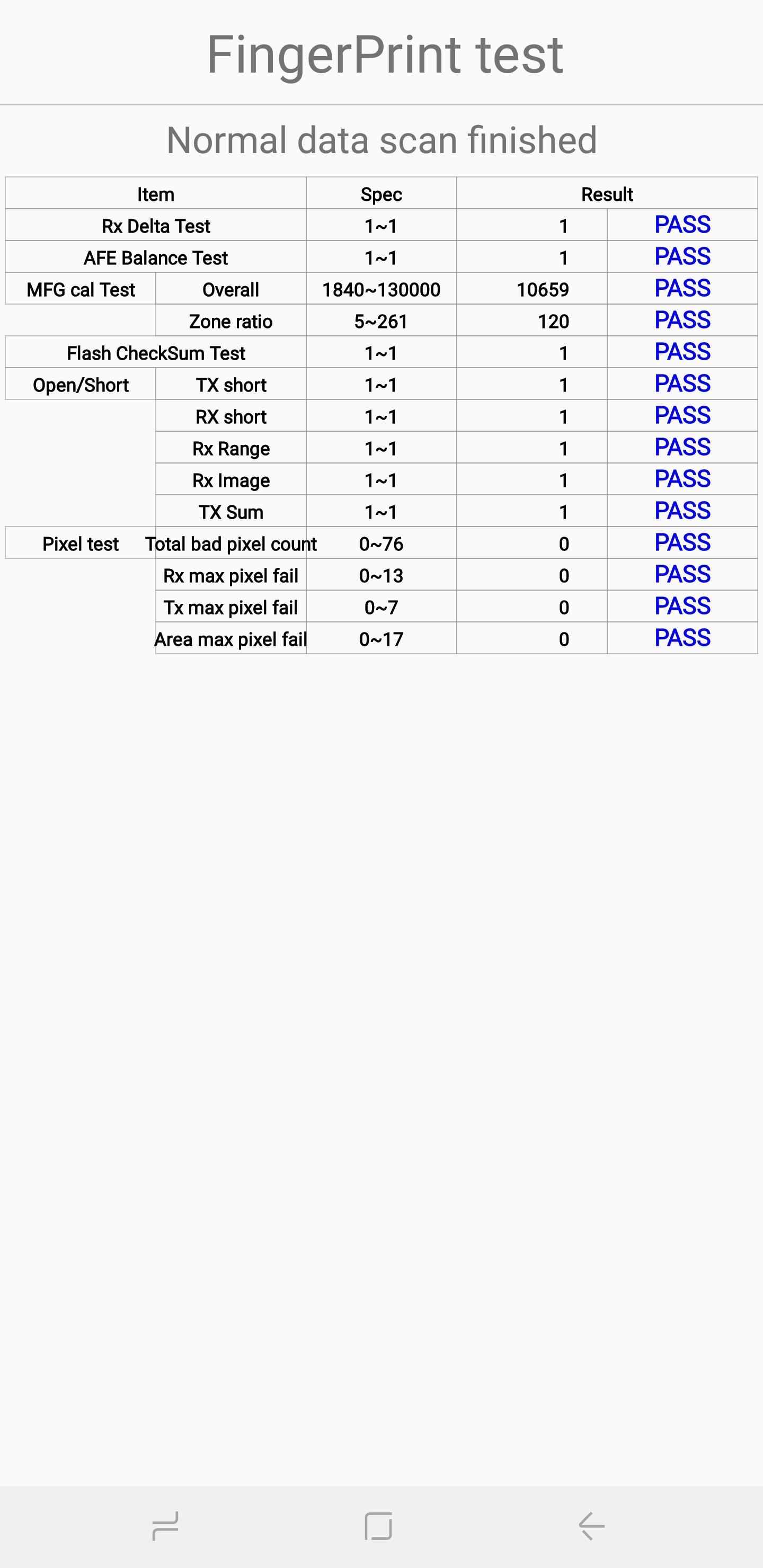
Touch
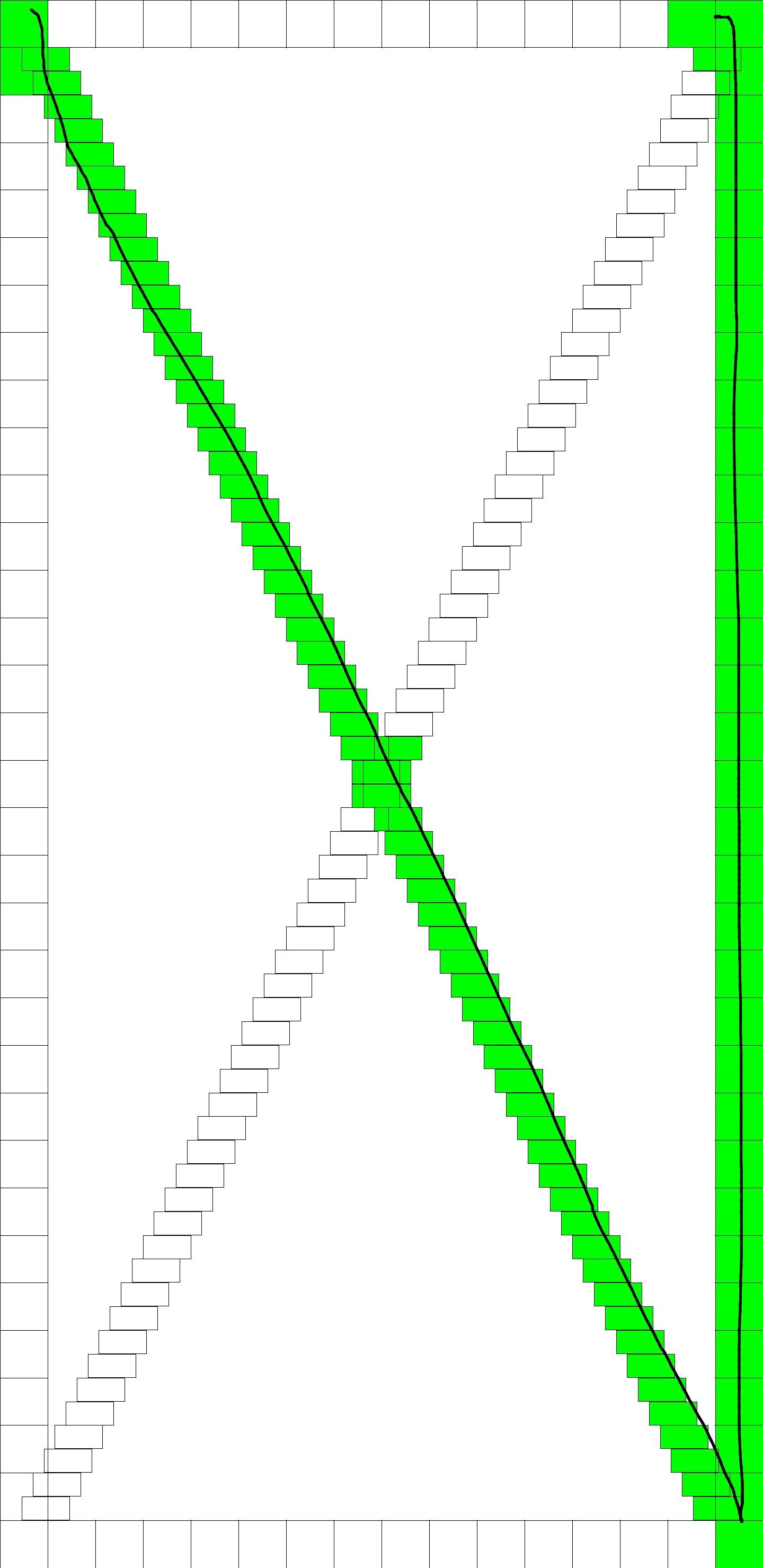
Your phone's touchscreen is easily its most important component you can test, as it's generally required to gain access and interact with your handset. So to test out this functionality and check for any dead zones, tap on the "Touch" button to get started. Now, trace the squares on the screen to complete the X-marked box, which should turn green. Once done, you'll be automatically taken back to the main test page. Alternatively, you can also exit to the main test page by pressing the volume up button.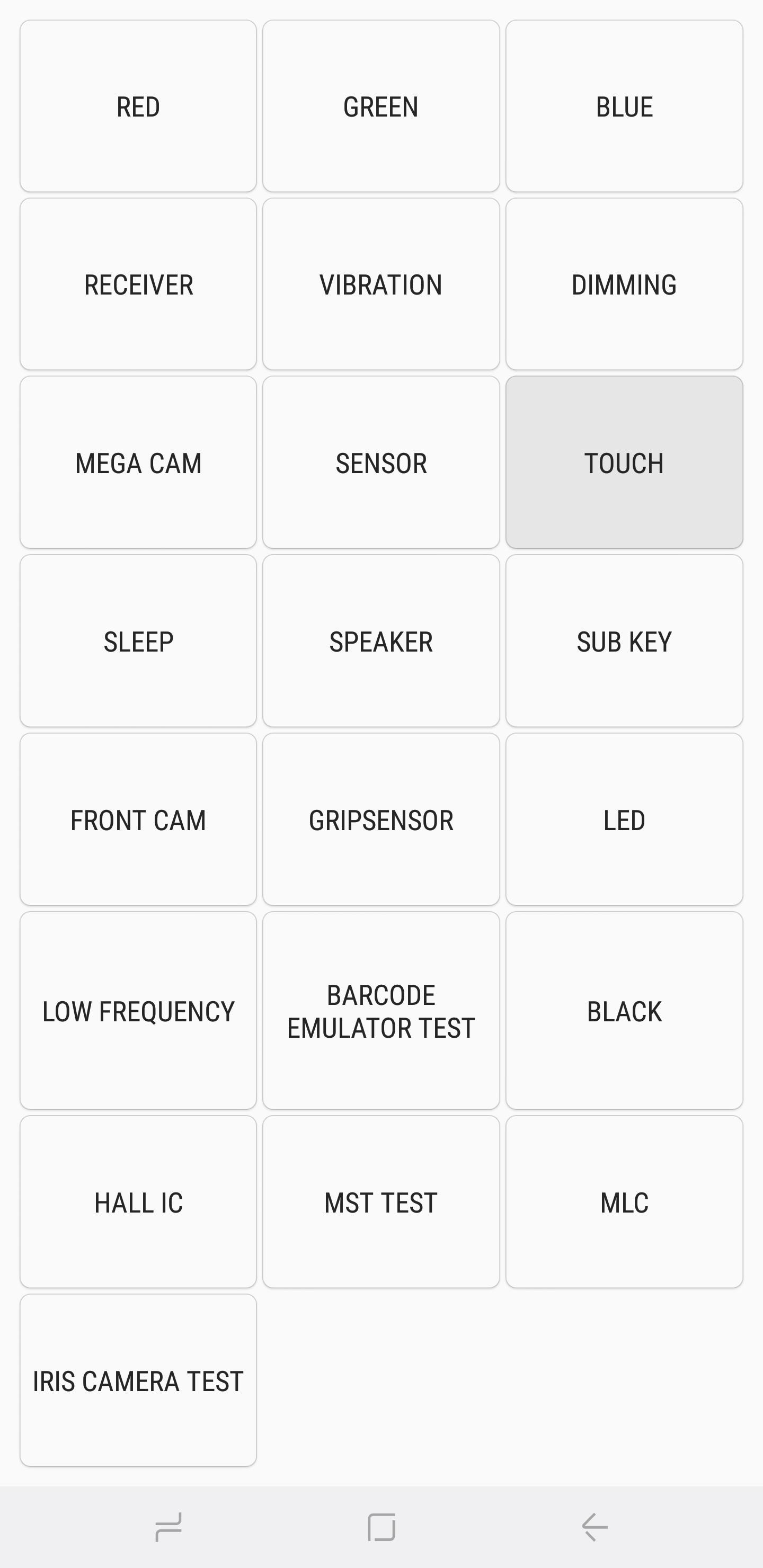

Sleep & Speaker
Tapping on the "Sleep" button will test out your device's sleep functionality. Doing so should immediately put your phone into sleep mode. Once done, wake your phone as you normally would, and you'll automatically be taken back to the main diagnostic page.Tap on the "Speaker" button if you want to test out your handset's audio output, which in turn plays a sample song that you can listen to. Once you've verified that your speakers are good, simply tap on the "Speaker" button again to end the test.
Sub Key
"Sub Key" tests out your hardware buttons, along with the virtual home button if you have a Note 8 or S8. Pressing each button changes the screen color to help verify their functionality. Tap on the exit button in the middle of the screen to exit back to the main diagnostic page.


Front Cam
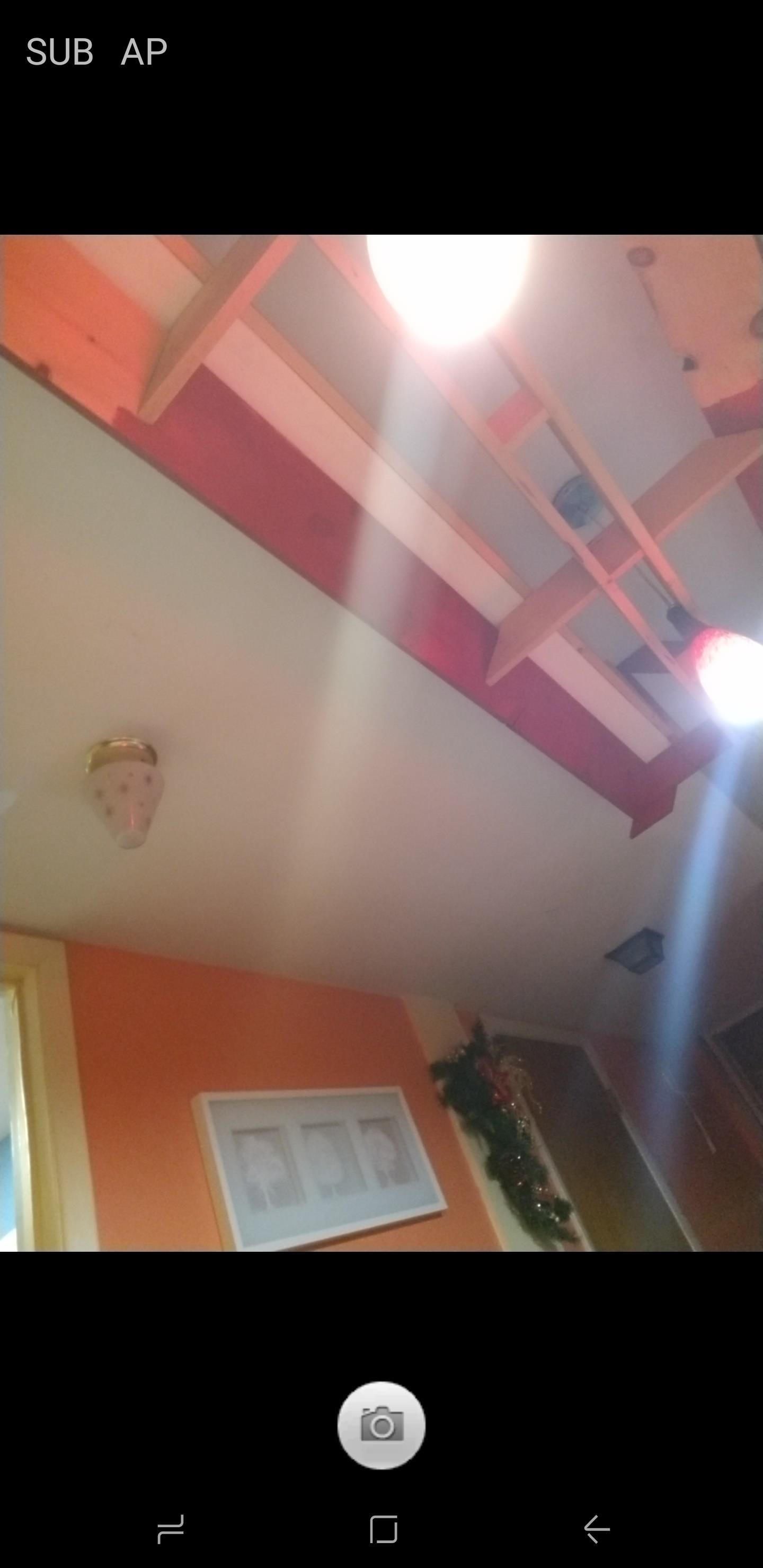
To test out your front camera, simply tap on the "Front Cam" button to get started. This will pull up your front camera and let you take a selfie as you normally would. Bear in mind that any test photos you take will automatically be stored in your handset's gallery, so be sure to delete them if they were strictly for testing. Once you're done testing your selfie cam, tap on the back button twice to head back to the main testing page.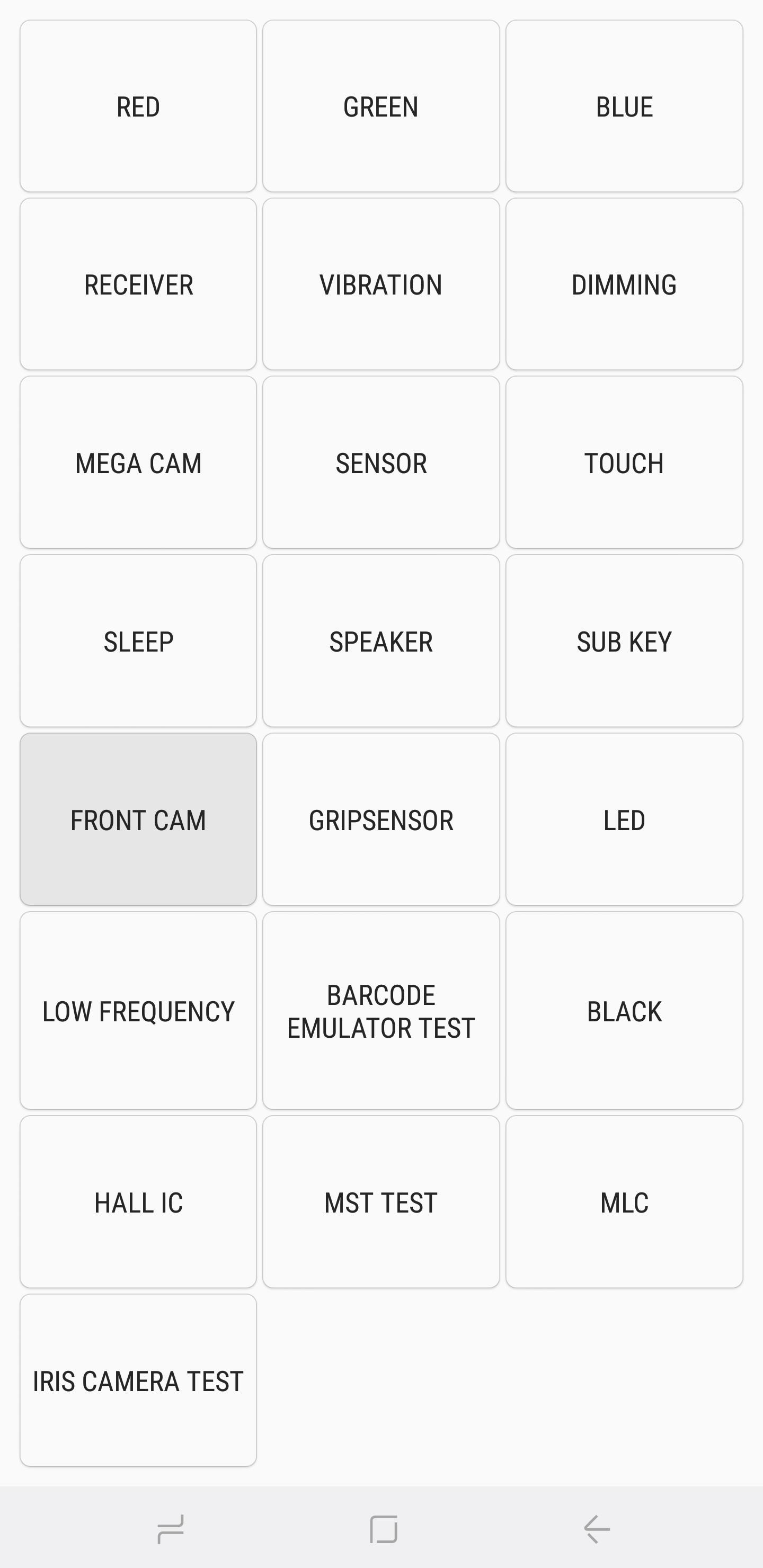
Gripsensor
Chances are your Samsung handset features sensors that detect your grip. To test for this functionality, tap on the "Gripsensor" button, then follow the prompts and release your grip when instructed. You should get a blue screen labeled "Working" if the grip sensor is functioning properly. Once you're done with the test, tap on the back button twice to go back to the main screen.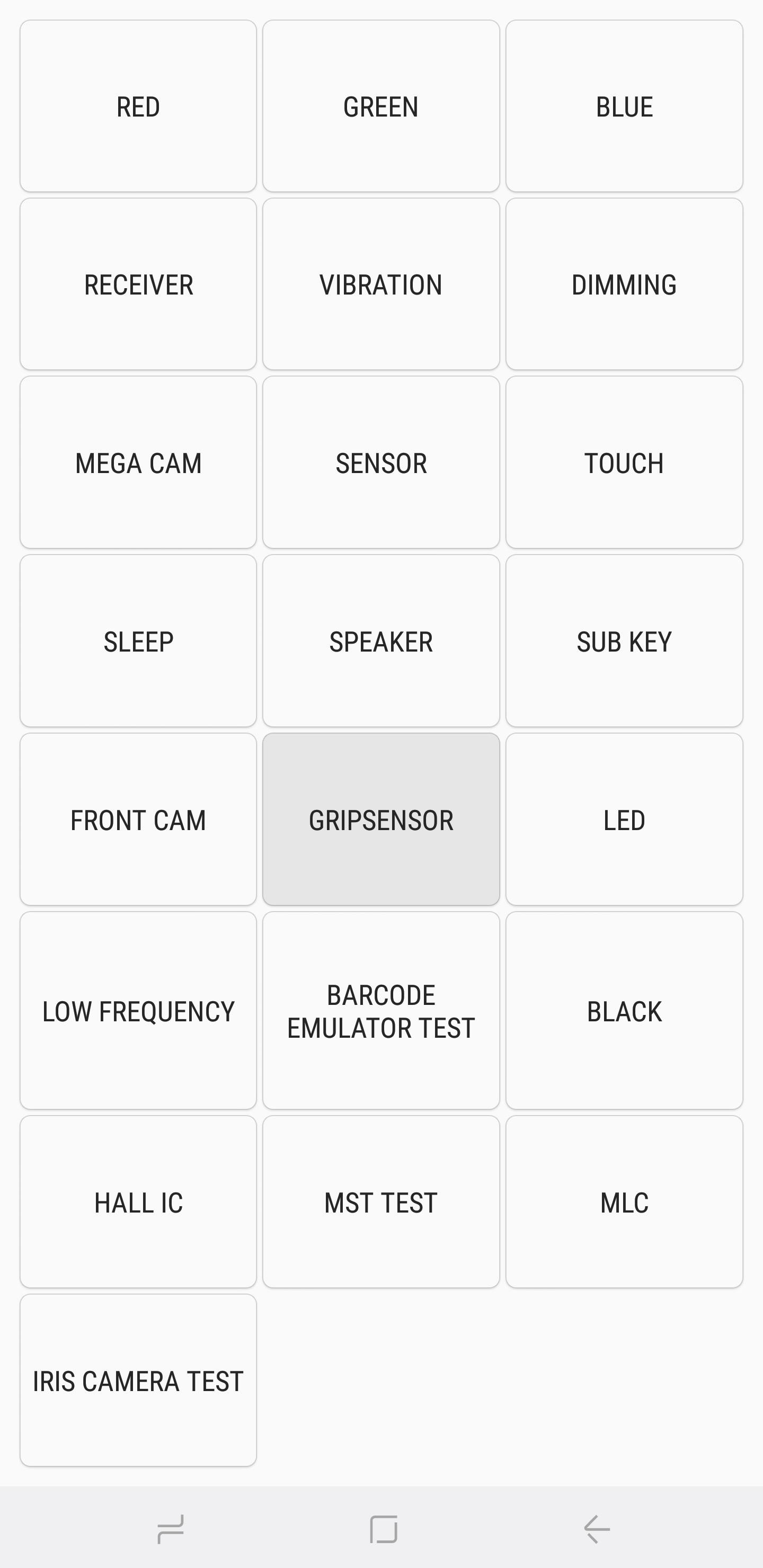


LED & Low Frequency
The LED test checks for the functionality of your device's LED notification light. Running the test is straightforward — simply tap on the "LED" button, then tap on the screen to change the LED's color from red, to green, and finally to blue. Tap on the screen one last time to end the test and go back to the main diagnostics page."Low Frequency" tests out your phone's earpiece, and tapping on the button to commence testing will bring you to the "Low Frequency Test" page. From there, tap on 100 Hz, 200 Hz, and 300 Hz and place your ear against the phone's earpiece each time you select a frequency to check for low buzzing noise. Once you've completed the tests, you can exit back to the main diagnostics page by tapping on the back button twice.
Barcode Emulator Test
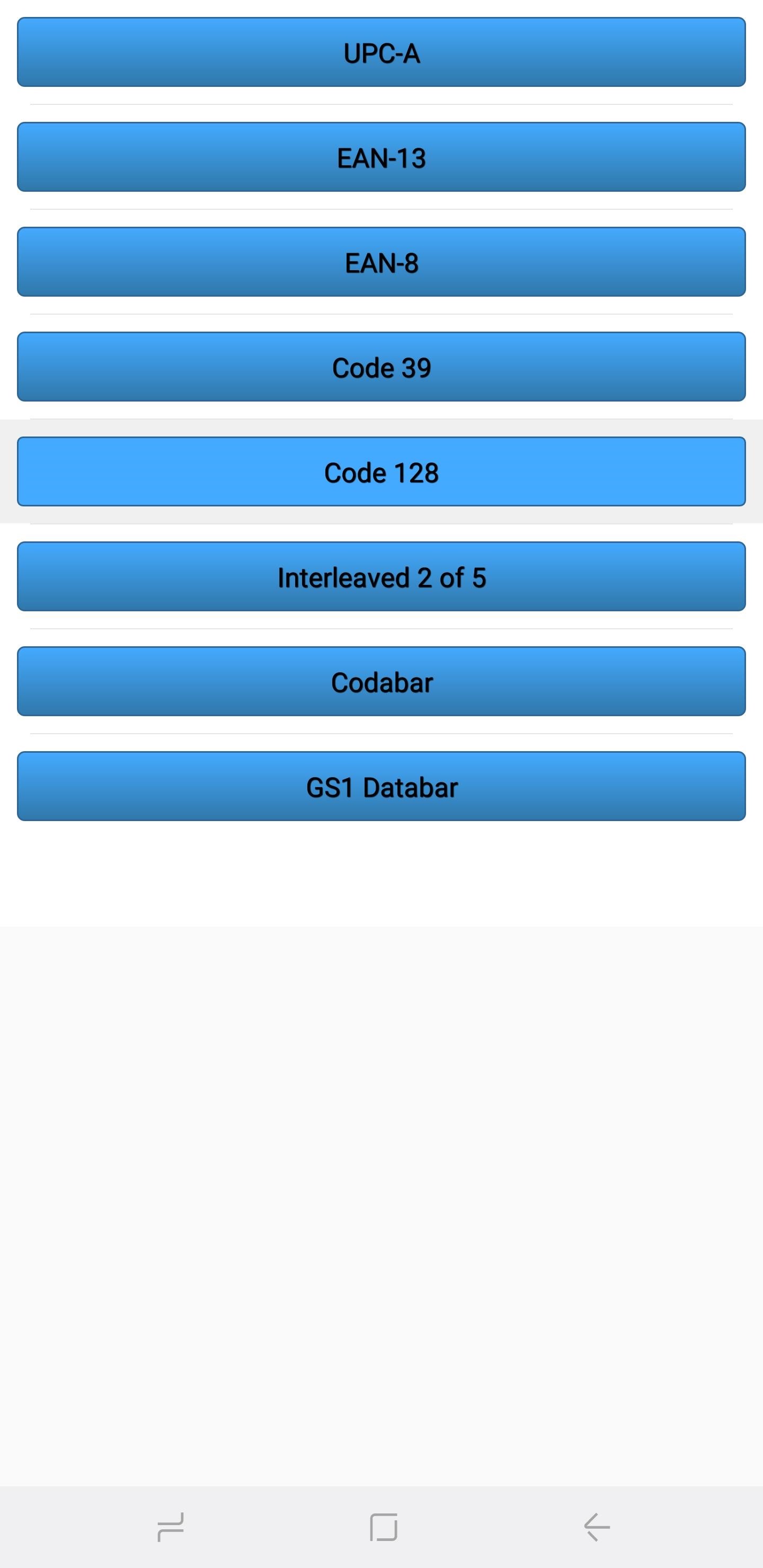
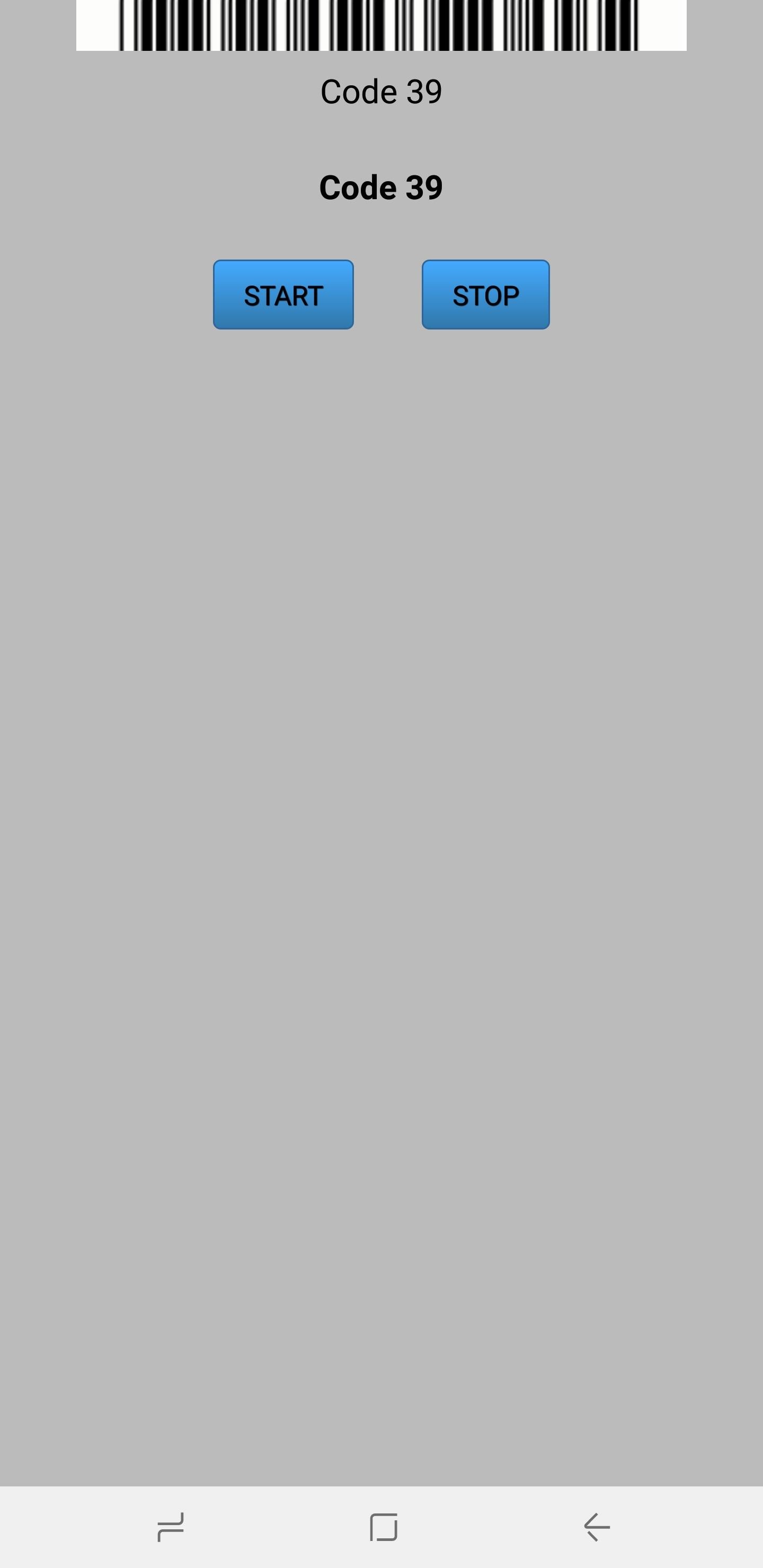
If you need to test out your handset's ability to properly generate barcodes, tap on "Barcode Emulator Test." Doing so will take you to a page containing different barcodes. From there simply tap on each barcode, and scan them with a barcode scanner to ensure they're being properly read. Once you're done testing, tap on the back button twice to go back to the main diagnostic page.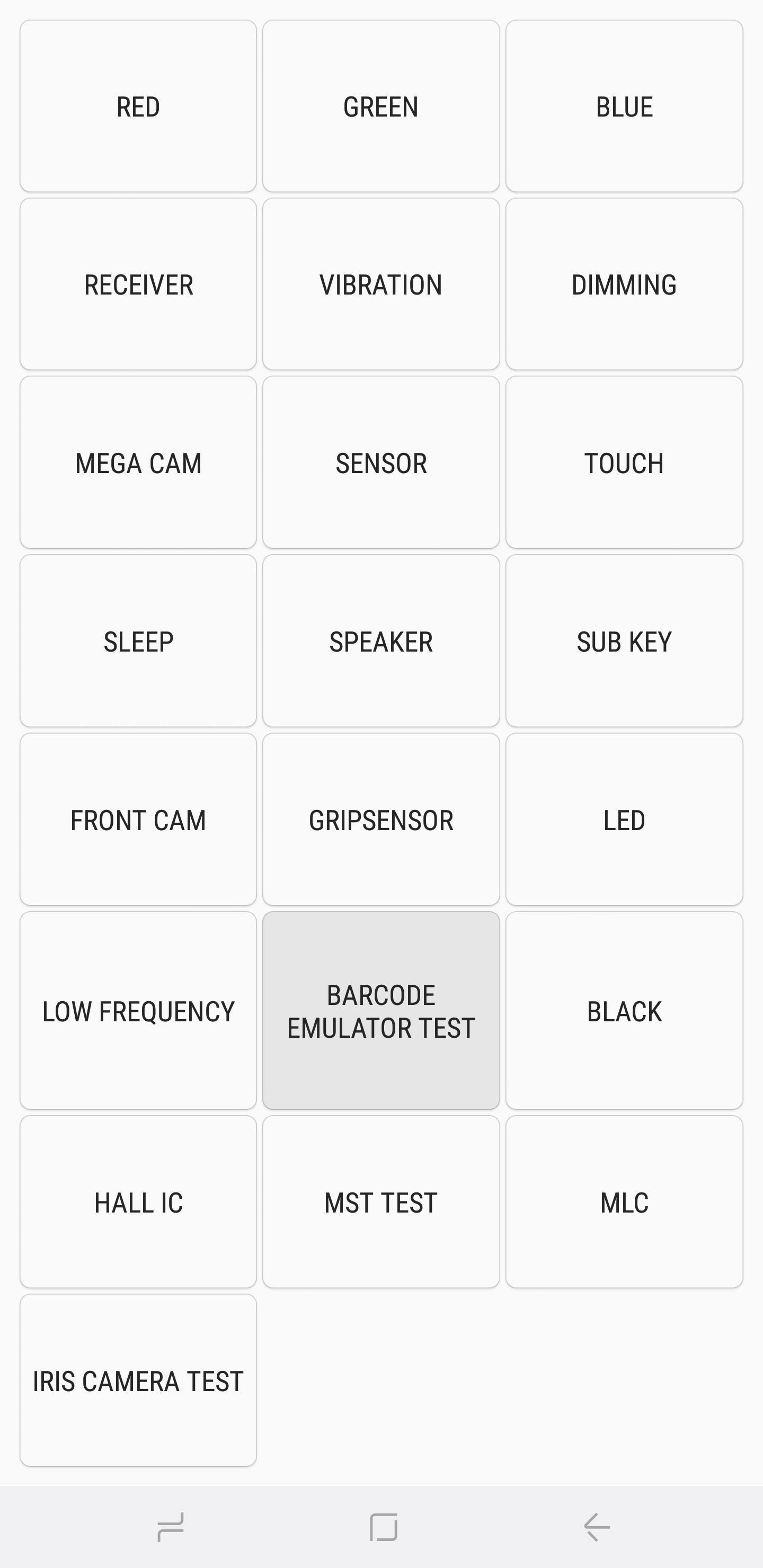
Hall IC, MST & MLC Tests
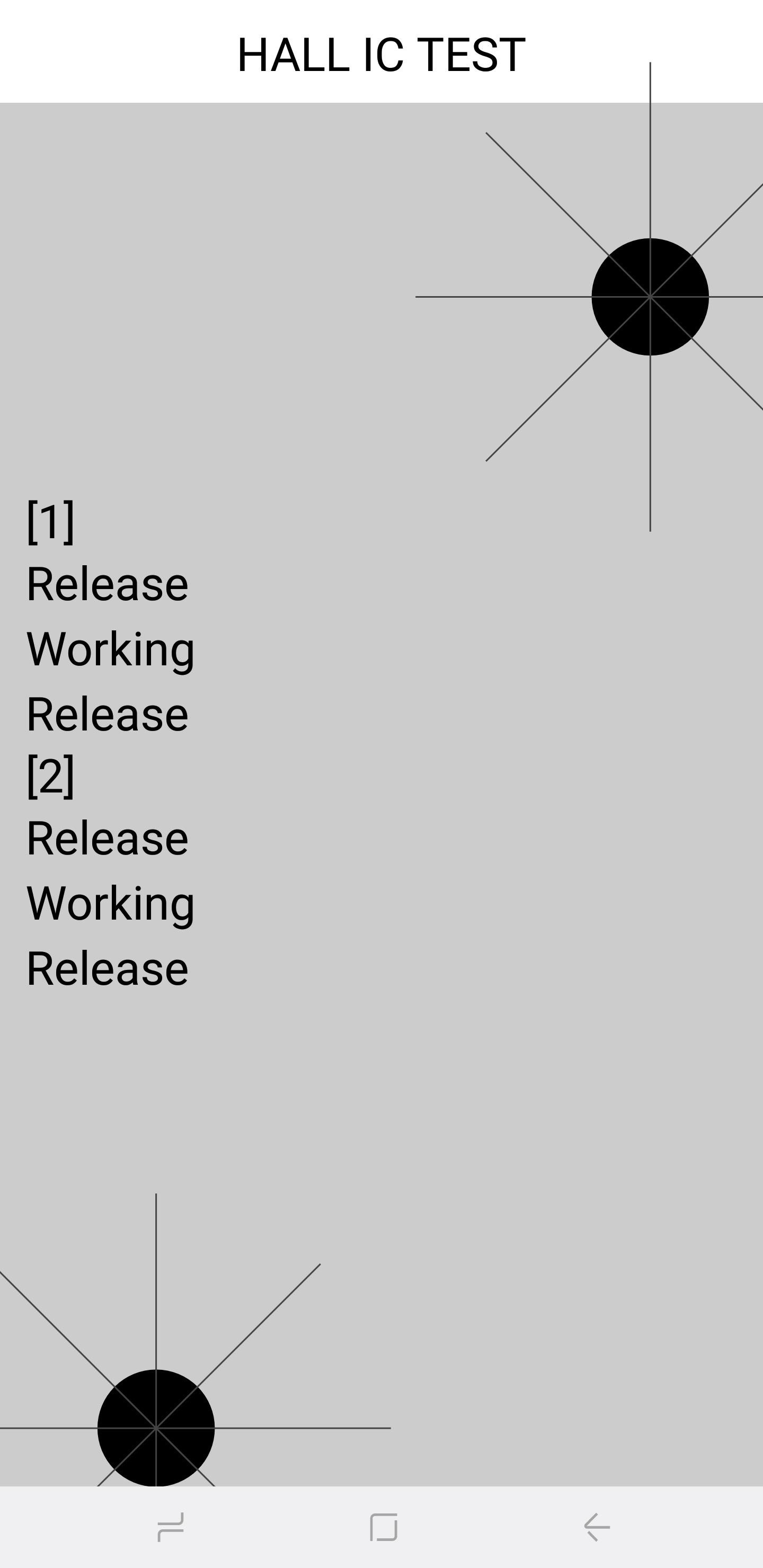
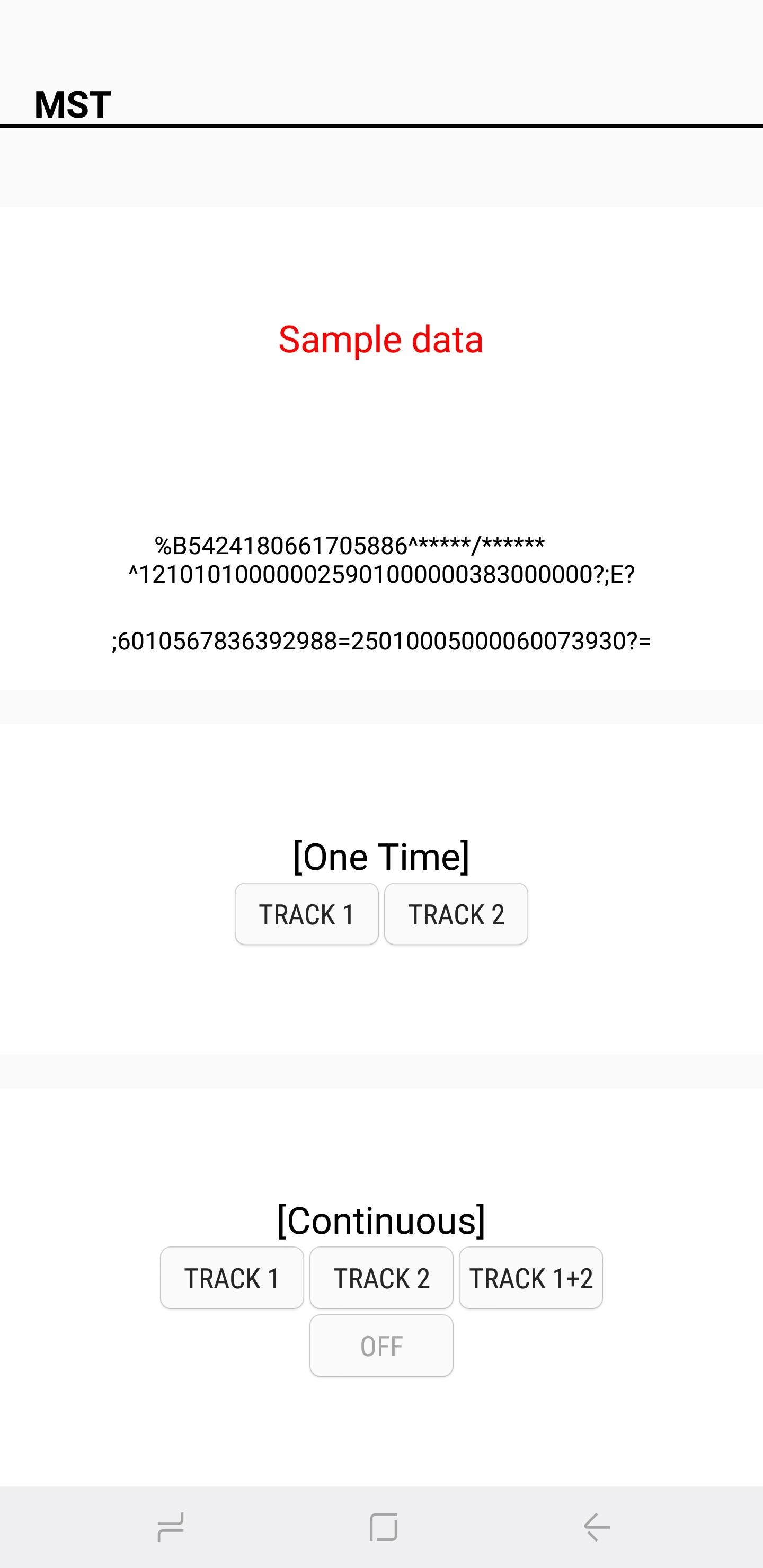
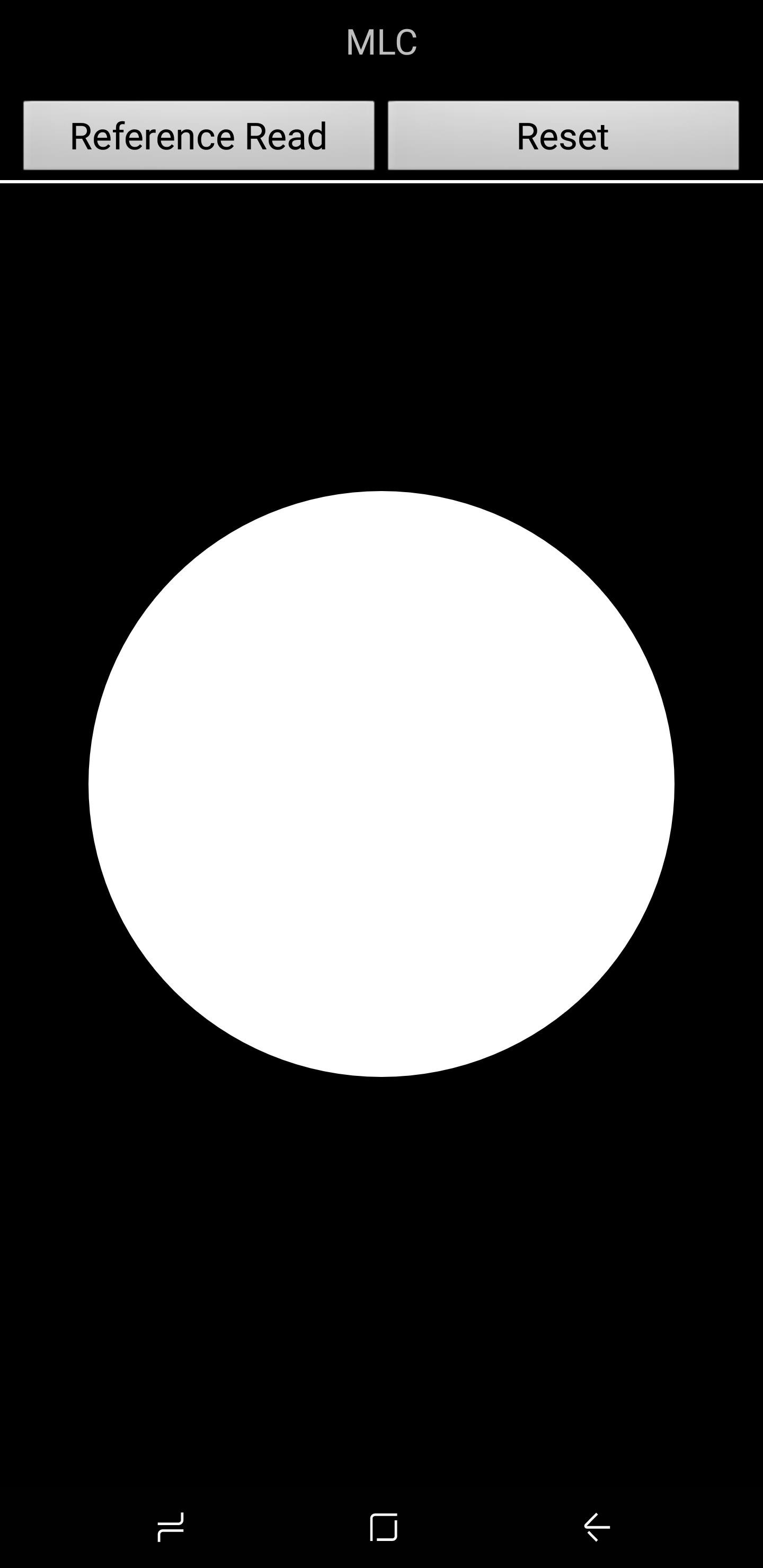
The Hall IC sensor detects magnetic fields and is primarily used to detect magnetic flip covers to automatically put the phone to sleep when a magnet within the flip cover touches the phone. The test itself doesn't do much and simply gives a confirmation that the Hall IC functions properly.MST, which stands for magnetic secure transmission, enables devices to temporarily read your phone as a credit card. This sensor is essential when using payment services such as Samsung Pay. MLC, on the other hand, is technology that's utilized in fingerprint sensors. There's not much in the way of tests in this area, which seems to be geared more towards developers to tinker with.
Mega Sg and Mega Jackpot Casino Queen
ReplyDeleteMega Sg and Mega Jackpot Casino Queen. Mega Jackpot. Play for 1xbet free at Casinoland カジノ シークレット today! More than 800 クイーンカジノ SEGA games, including classics like Megadrive classics like
송지숙 SSG닷컴 리빙MD팀 바이어는 "앞으로도 프리미엄 리빙 우리카지노 브랜드 라인업을 지속 확장하는 한편, 다양한 한정 판매 리빙 상품을 발굴해 선보일 계획"이라고 밝혔다. 이번에 선보이는 바카라 제품은 포켓몬 탄생 25주년 기념으로 제작된 크리스탈 에디션이다. ‘피카츄’와 ‘몬스터볼’ 등 두 가지 제품 모두 특별 패키지에 담겨 제공되며, 실링이 된 포켓몬 카드가 함께 들어있다. 이번에 판매하는 포켓몬 컬렉션 상품은 ‘피카츄’와 ‘몬스터볼’ 두 가지다.
ReplyDelete